

How to Turn a Photo Into a Minecraft Skin
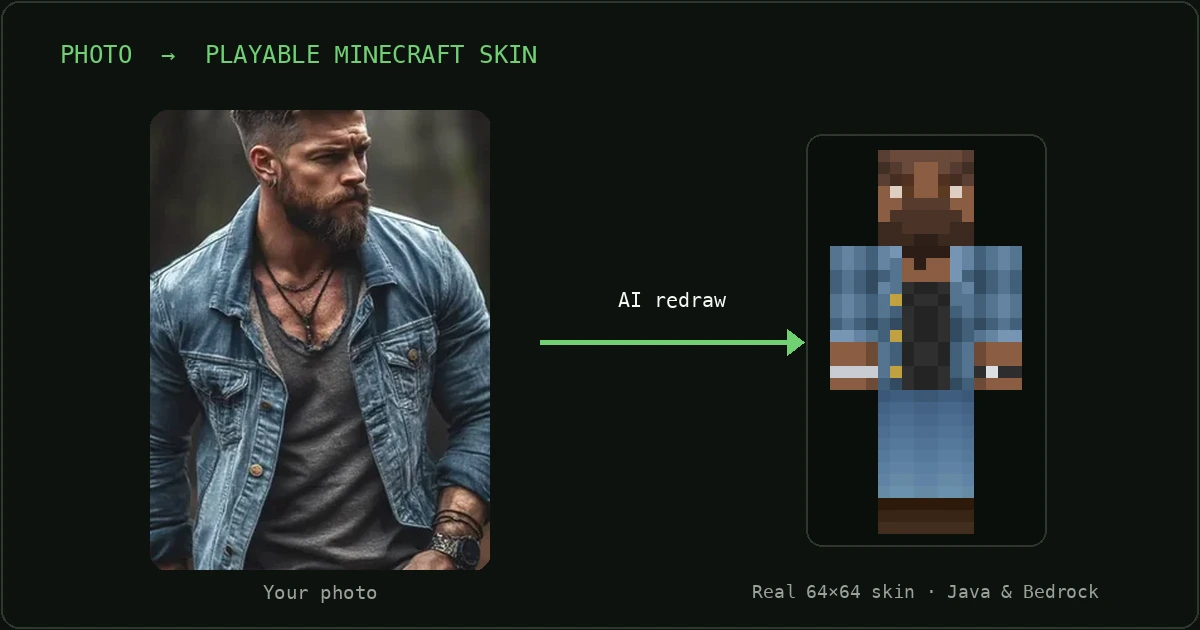
You found a photo you love. Maybe a selfie, maybe a shot with your best angle and your favorite hoodie, and you want to walk into your Minecraft world looking exactly like that. The good news: turning a photo into a Minecraft skin is genuinely easy in 2026. The catch nobody tells you is that some "AI Minecraft skin" tools hand you a nice-looking picture that isn't actually a skin you can play. It renders beautifully in the preview, you download it, and it may turn out to be an image Minecraft won't accept as a skin, or it uploads as a photo stretched over the character model.
Below is how to spot a real skin, the four ways to make one from a photo, and the exact steps to get it in-game on Java or Bedrock.
How to turn a photo into a Minecraft skin (the short version)
If you just want the quick method, here it is. The rest of this guide explains each step so you can judge any tool for yourself.
- Pick a clear, front-facing photo in good light, with your face, hair, and outfit visible.
- Use an AI photo-to-skin tool that outputs a real 64×64 PNG on the skin template (not a JPG or a generic "avatar" image).
- Download the PNG file.
- Upload it to your account: at minecraft.net for Java, or via Import in the in-game character creator for Bedrock.
What actually makes a real Minecraft skin
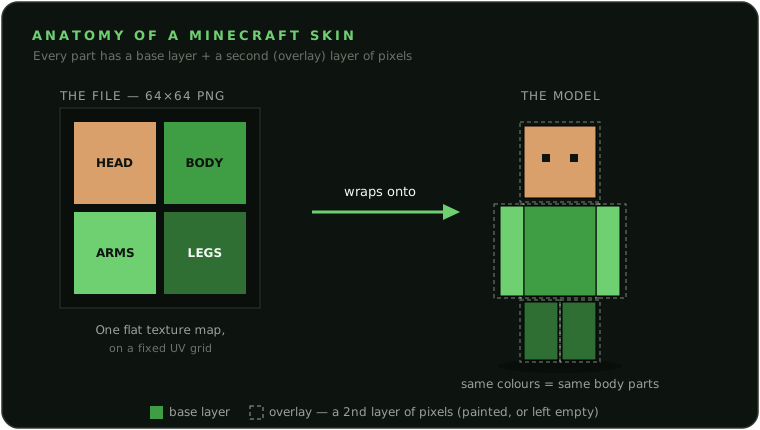
Before you turn a photo into a Minecraft skin, it helps to know what a skin really is, because it's not a picture of a character. A skin is a texture map: a small, flat sheet of pixels the game wraps around the 3D player model like wrapping paper around a box. Minecraft already owns your character's shape (a head cube, a body, two arms, two legs). Your skin file just supplies the coloring for every flat face of every cube.
It's a 64×64 PNG, and yes, that's tiny
The modern standard skin is exactly 64×64 pixels. That's the entire skin. The original 2009-era format was 64×32, half the height, and Java still accepts it for backward compatibility, but it can't hold the extras modern skins use, like a full second layer on every limb. If a tool never mentions 64×64 anywhere, treat that as a yellow flag.
A real skin is also a PNG, never a JPG. Modern skins have a second layer of pixels sitting just outside the base — the "overlay" (hair, hats, glasses, jackets, sleeves). Every pixel on that layer is either painted — a solid pixel that shows on top of the base — or left empty, so the base underneath shows through. Recording "this pixel is empty" is exactly what a PNG can do and a JPG can't, which is the real reason a skin has to be a PNG. PNG is also lossless, so on a 64×64 grid where every pixel is a visible block face, you don't get the smeared, dirty edges a JPG leaves behind. If a tool hands you a JPG, it gave you a picture, not a skin.
Classic vs slim, and why the layout matters
There are two body models, and they differ in exactly one way: arm width. Classic ("Steve") has 4-pixel-wide arms; slim ("Alex") has 3-pixel-wide arms. Everything else (head, torso, legs) is identical. A skin drawn for one model but worn on the other leaves a mismatched gap or overhang on the arms, so a good photo-to-skin tool should let you pick, and both Java and Bedrock let you choose the model when you set your skin.
Finally, the reason you can't just paste a photo onto the square and get a good result: the 64×64 sheet is a UV layout, an unfolded map of which patch paints which face of which cube, like a flattened cardboard box. The head's front face always lives in one fixed rectangle, the right leg in another, and so on. Paste a photo straight on and your eye lands on the top of the head while an ear ends up on the torso. A tool that understands skins places your face into the head-front rectangle, hair into the head and overlay rectangles, and clothing onto the torso and limbs, respecting the layout. That's the whole difference between a genuine skin and a distorted wrap.
One more reassuring fact: a single 64×64 PNG is a valid skin on both Java and Bedrock. The only difference is how you upload it. Bedrock also natively supports 128×128 HD skins with no mods, while Java vanilla supports only 64×64 (and legacy 64×32) and needs client mods for anything higher. For almost everyone, 64×64 is "the" skin.
Four ways to make a Minecraft skin from a photo
There are four broad approaches, and they trade off differently across the things that actually matter: whether the output is a real, playable file, and whether it looks like a redrawn character or a stretched photo. Here's an honest, side-by-side look.
| Approach | Real 64×64 skin file? | Plays in Java/Bedrock? | How it looks | Effort |
|---|---|---|---|---|
| Manual pixel editors (e.g. The Skindex, Nova Skin, Tynker, Planet Minecraft PMCSkin3D). You draw the skin by hand; a photo is only an on-screen reference. |
Yes, purpose-built skin editors that export a valid 64×64 PNG. | Yes, a standard skin file you upload or import. | Entirely up to your skill; a beginner rarely gets a clean likeness. | High skill, often an hour or more. |
| Direct image-to-skin mappers You upload a photo and the tool stamps its pixels straight onto the skin template — no redrawing. |
Yes, these typically produce a real 64×64 PNG. | Yes, genuinely uploadable to Java and Bedrock. | Not what most people expect — your flat photo is wrapped onto a blocky body, so the face and clothes come out stretched and distorted rather than redrawn as a character. | Low, usually seconds. |
| AI-art "skin generators" Image generators with a Minecraft theme — you get an AI-drawn picture of a blocky character. |
Usually not — the output is a rendered image (an "avatar" or artwork), not a UV-mapped 64×64 skin file. | Not as-is — a picture isn't a skin you can upload to your account and wear. | Often the best-looking image of the bunch — but it's art, not a wearable skin. | Low, usually under a minute. |
| Photo2Skin (AI photo → real playable skin) Upload one photo and it redraws you as a Minecraft character; also supports text-to-skin. |
Yes, a genuine 64×64 PNG on the correct UV layout, plus 3 style variants from one photo. | Yes, built for both Java and Bedrock, with a 3D preview to check the wrap before you download. | AI-quality likeness redrawn as a proper blocky character, correctly mapped. | None, upload and pick a variant. |
Two gaps show up again and again. The first is great-looking output that isn't a usable skin file, polished AI art you can't actually wear in-game. The second is the opposite: a real, uploadable file that looks crude, because your photo was shrink-wrapped onto a box without being redrawn.
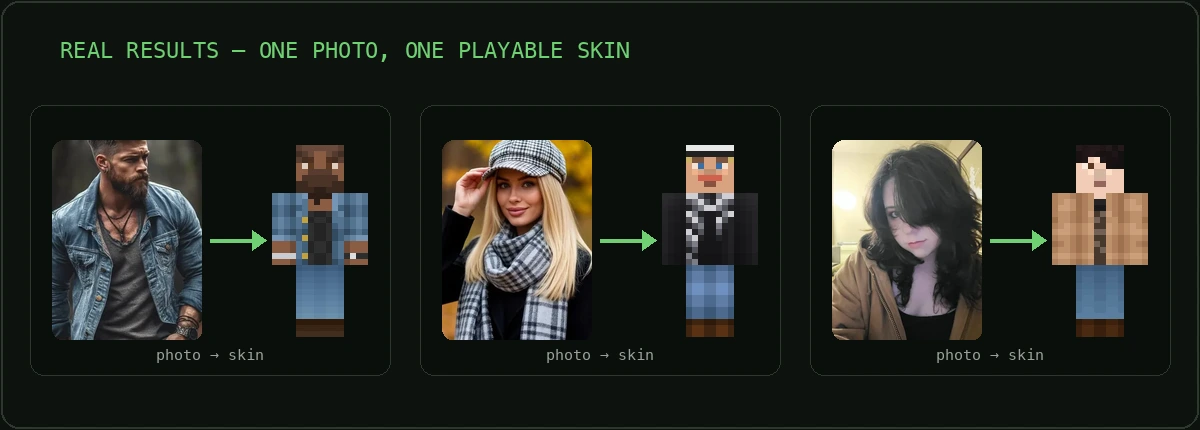
The sweet spot is the intersection: AI-quality likeness and a genuine, correctly-mapped 64×64 PNG. That's the gap a good photo-to-Minecraft-skin tool is built to fill, and it's exactly where Photo2Skin aims to land.
How to tell if a tool gives you a real skin
You don't have to take anyone's word for it. Here's a quick checklist you can run on any picture-to-Minecraft-skin tool before you trust it. A real skin is:
- A PNG file, not JPG/JPEG — only PNG can store the empty pixels a skin's overlay layer needs.
- 64×64 pixels. Java also accepts legacy 64×32; Bedrock accepts 64×64 or 128×128. Open the file's properties and it should read one of those exact sizes.
- Uploadable to your account. The tool tells you how to put it on your character: upload the PNG at minecraft.net for Java, or Import it in-game for Bedrock.
- Model-aware. It lets you choose, or clearly states, Classic (4px arms) vs Slim (3px arms).
- Laid out on the skin template. You can recognize a face-patch and a torso-patch in the flat sheet, not a smeared photo.
And here are the signs you may be getting a picture instead of a playable skin. Check these yourself; no brand-bashing required.
- The download is a JPG/JPEG, or the tool offers "save as JPG." Skins are PNG.
- The result is called an "avatar," "art," or "image," and 64×64 is never mentioned anywhere.
- There are no instructions to upload it to your Minecraft account, just "download your image."
- The output is a recognizable photo pasted onto a body shape rather than a redrawn, pixel-aligned character.
The easy way: turn your photo into a skin with Photo2Skin
If you'd rather skip the pixel art and just get a real, playable skin, this is the shortcut. Photo2Skin is built to do one thing well: take a single photo and redraw you as a genuine Minecraft skin.
- Upload one photo. A clear, front-facing shot in good light, with face, hair, and outfit visible, gives the best likeness. You can also describe a character in text instead of uploading a photo.
- Get three skin styles back. From that one photo, Photo2Skin generates three distinct variants (Signature, Cute, and Playful), so you're choosing a look you like, not stuck with a single output.
- Preview it in 3D. Spin the skin on the model to check the wrap, how your face, hair, and clothes sit on the character, before you commit.
- Download the 64×64 PNG. The file you get is a real, correctly-mapped skin, ready to upload to Java or Bedrock.
It runs in any browser, and there's an iOS app if you'd rather make your skin on your phone and apply it right there. Want to tweak the result — change a hair color, fix an eye, add a logo? Open it in the built-in Minecraft skin editor and paint straight on the 3D model before you download.
How to upload your skin and play (Java and Bedrock)
Once you have your 64×64 PNG, applying it takes a minute. A few things are true no matter which edition you play: the file must be a PNG (not JPG), the size is 64×64 (Bedrock also accepts 128×128 HD), and you need to be signed in with your Microsoft account, the account Minecraft uses everywhere now.
Java Edition (PC/Mac)
You can use either the website or the launcher; both change the same account skin.
Via the website:
- Go to minecraft.net and sign in with your Microsoft account.
- Open the Change Skin page (profile menu → Skins, or go directly to
minecraft.net/msaprofile/mygames/editskin). - Choose your model: Classic (4px arms) or Slim (3px arms).
- Select your
.pngfile, then click Upload. - Launch or restart Minecraft Java to see it. If you're already in-game, return to the main menu or restart.
Via the Minecraft Launcher:
- Open the launcher and make sure you're on the Java Edition side.
- Click the Skins tab, then add a new skin.
- Browse to your
.png, give it a name, and pick Classic or Slim. - Save and use it, then press Play. The skin is now on your account.
Bedrock Edition (Windows, mobile, console, Switch)
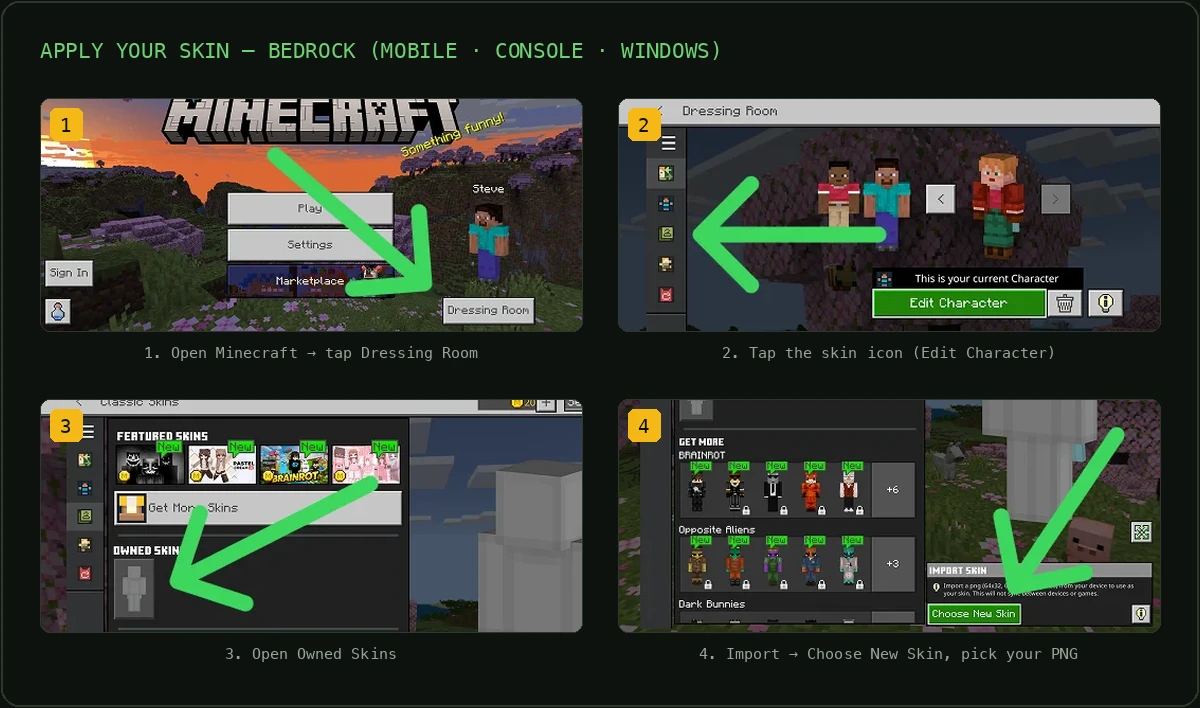
Bedrock skins live in the in-game Dressing Room (character creator), not on a website. Importing a custom PNG works on Windows, Android, and iOS:
- From the main menu, open the Dressing Room (or tap your profile/character), then choose Edit Character.
- Open the Classic Skins section, the tab that accepts custom PNGs, not the premium Character Creator marketplace tab.
- Select the Import option (look for the coat-hanger/import icon) and pick your
.pngfrom your device. - Choose your body type (Classic or Slim) and confirm. The skin applies right away. Minecraft may warn that a custom-imported skin won't sync to your other devices — that's expected; just re-import the same PNG on each device where you want it.
One note for Xbox, PlayStation, and Nintendo Switch: the console editions don't give you a file picker for a custom PNG, so import your skin on a Windows PC, phone, or tablet instead. And because custom-imported skins don't reliably sync between devices, the most dependable approach is to import the PNG on each device where you play.
Frequently asked questions
Is it free to turn a photo into a Minecraft skin?
It depends on the tool. Many manual skin editors are free, while AI photo-to-skin tools vary — some are paid and some include a limited number of free generations. Whatever you use, make sure you can actually download a usable 64×64 PNG, not just preview it.
Does a photo-to-skin tool work for both Java and Bedrock?
It should. A real Minecraft skin is a single 64×64 PNG that works in both editions; only the upload differs. For Java you set it at minecraft.net or the launcher, and for Bedrock you tap "Import" in the in-game Dressing Room. If a tool never mentions 64×64 or how to upload the file, that's a sign you may be getting a picture rather than a genuine skin.
What photo makes the best Minecraft skin?
A sharp, well-lit, front-facing shot where your face, hair, and outfit are clearly visible gives the best result. Busy backgrounds, heavy filters, sunglasses, hats, and side profiles make it harder for any tool to read your features. Quality in equals quality out, so the more clearly your features read, the more recognizable the skin.
Is it safe and private to upload my photo?
Only upload to tools with a clear privacy policy, and prefer ones that don't publish your photo or the result publicly by default. Check whether images are used to train models or shown in a public gallery. Photo2Skin uses your photo only to generate your skin and does not post it publicly.
Can I make a Minecraft skin from a photo on my phone?
Yes. The best photo-to-skin tools run right in your mobile browser or as an app, so you can snap or pick a photo and get a skin without a PC. On Bedrock, the in-game "Import" flow then lets you apply the skin directly on the same phone.
Can I edit the skin after it's generated?
Yes, as long as the tool gives you a real skin file. Because the output is a standard 64×64 PNG, you can open it in any skin editor (like the Skindex editor or Nova Skin) to touch up pixels, change colors, or add accessories before uploading. An exported avatar image or JPG can't be edited as a skin.
Why does my skin look like a photo pasted on a box?
That's the tell-tale sign of a direct pixel-mapping tool: it wraps your photo's actual pixels onto the template, so a 2D face gets stretched across a 3D head and limbs. AI redraw tools avoid this by painting a proper blocky character with correct shading on each face of the model, instead of projecting a flat image.
What size and format does a Minecraft skin need to be?
A modern Minecraft skin is a 64×64-pixel PNG with transparency support (the old 64×32 layout is legacy, and Bedrock also allows 128×128 HD). If a tool exports a JPG or a larger "poster" image, it isn't a valid skin file. That's your quickest check for whether you're getting a skin or just art.
Turning your photo into a Minecraft skin, the right way
Learning how to turn a photo into a Minecraft skin comes down to one idea: the thing you download has to be a real skin, not just a picture. A genuine skin is a 64×64 PNG, laid out on the UV template, that uploads to your account and plays in Java or Bedrock. Once you know that, you can judge any tool in seconds and pick the approach that gives you both the AI-quality likeness and the real, playable file. When you're ready, you can make a Minecraft skin from your photo in a couple of minutes and be wearing it in-game the same day.