

How to Turn a Selfie Into a Minecraft Skin
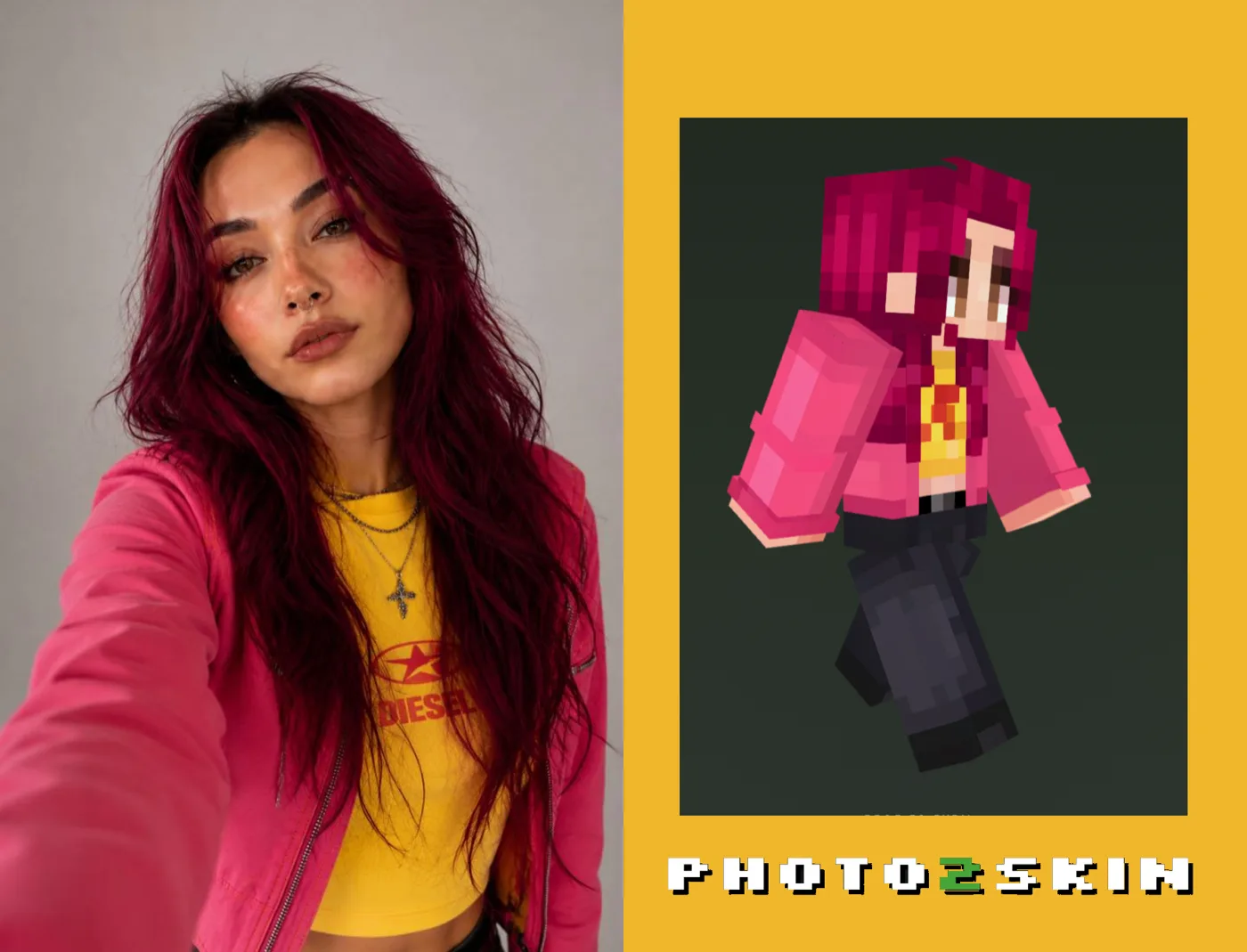
Your selfie can become more than a Minecraft-style picture. With an AI selfie to Minecraft skin generator, you can use your own face, hair and outfit as the reference for a real 64×64 skin that you can actually wear in Minecraft.
The process takes only a few steps: choose a clear selfie, upload it to Photo2Skin, generate your skin and download the finished PNG. The AI rebuilds your appearance for Minecraft's character format instead of simply shrinking or pixelating the original photo.
How to Make a Minecraft Skin From a Selfie
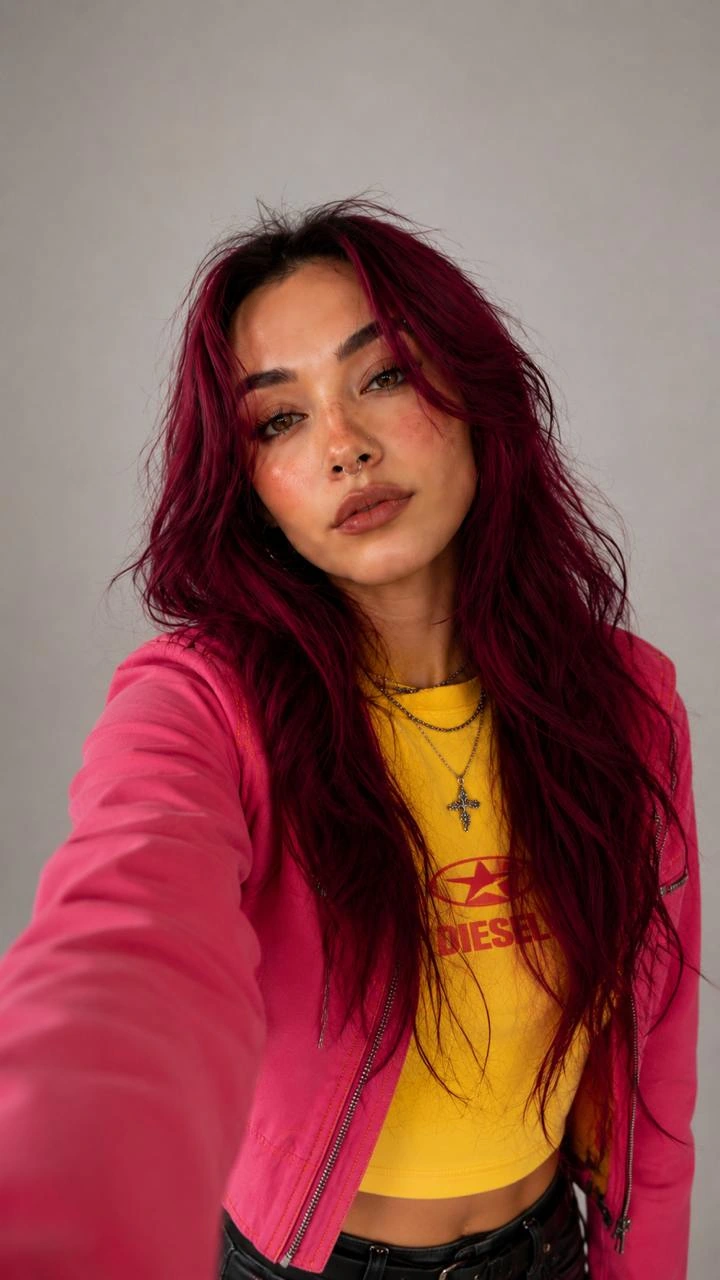
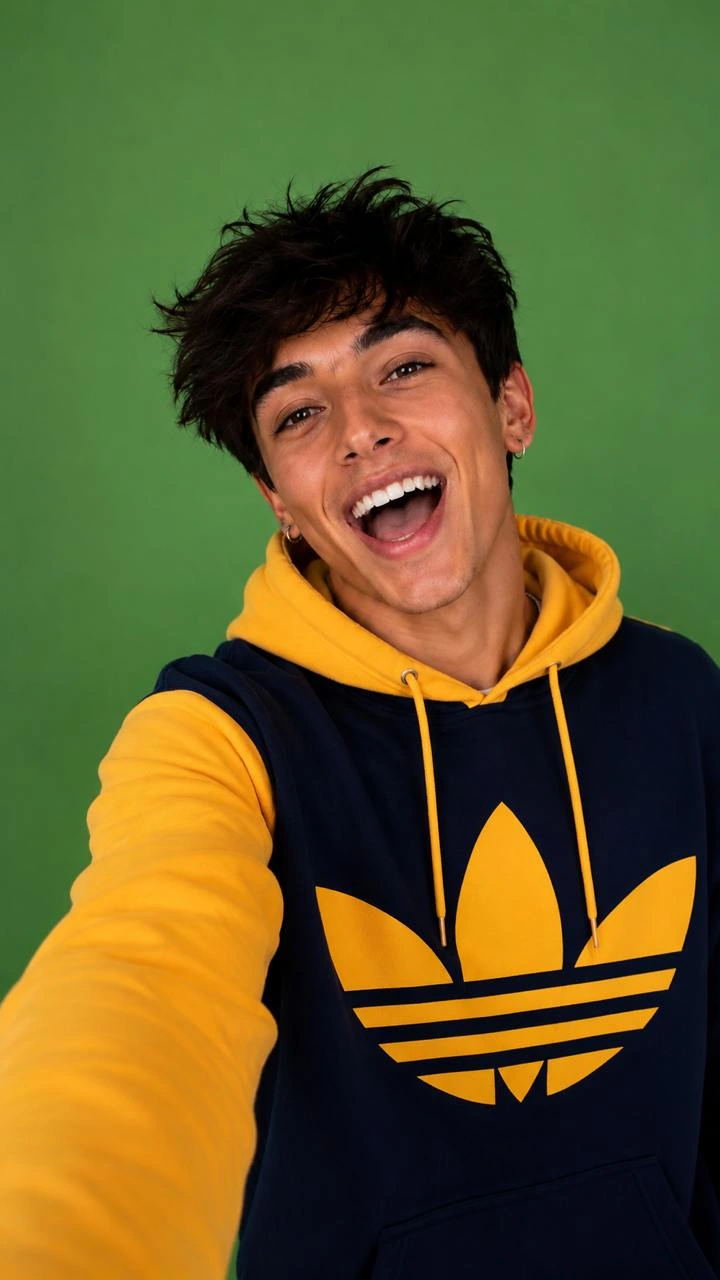
You do not need to draw your face on a Minecraft skin template manually. Photo2Skin analyzes the recognizable parts of your selfie and uses them to create a complete character across the head, torso, arms and legs.
- Choose a clear selfie where your face, hair and clothing are visible.
- Upload the photo to the Photo to Minecraft Skin Generator.
- Generate your AI Minecraft skin.
- Preview the result as a 3D Minecraft character.
- Edit any details you want to change.
- Download the finished 64×64 PNG and use it in Minecraft.
1. Choose a Selfie That Shows Your Look
A good selfie to Minecraft skin conversion starts with a photo that gives the AI something useful to work with. Choose a well-lit image where your face and hairstyle are easy to see, and include some of your clothing if you want the generated skin to resemble your real outfit. Avoid very dark, blurry or heavily filtered selfies that hide the details you actually want to keep.
2. Upload Your Selfie to Photo2Skin
Open the Photo2Skin AI Minecraft Skin Generator and upload your selfie. The tool accepts common photo formats including JPEG, PNG, HEIC and WebP, so you can use a picture directly from your phone or computer without preparing a Minecraft skin template first.
3. Generate Your Minecraft Skin With AI
Start the generation and the AI interprets your selfie as a character rather than treating it as a flat image. Hair, facial details, clothing and colors are translated onto the correct Minecraft body parts, producing a real 64×64 skin texture instead of a picture that merely looks like a Minecraft character.
4. Preview Yourself as a Minecraft Character
Check the generated skin on the 3D character before downloading it. Rotate the model to see the front, back and sides and look at the details that matter most to you: hairstyle, face, shirt or jacket, pants and overall color combination. A skin has surfaces that are never visible in a normal front-facing selfie, so the generated character will interpret those missing parts to complete the design.
5. Edit and Download Your Minecraft Skin
If the generated version is close but you want to change something, open it in the Minecraft Skin Editor. You can adjust individual pixels, change colors or modify details directly on the 2D texture or 3D model, then download the finished 64×64 PNG for Minecraft Java or Bedrock.
Setting it as your in-game skin is a separate job, and it works differently on each edition — our guide on how to change or import a custom Minecraft skin covers both.
What Does AI Keep From Your Selfie?
A Minecraft character has far fewer pixels than a photograph, so the goal is not to reproduce every detail of your face. The AI instead looks for visual features that can still make the character feel like you when translated into Minecraft's blocky format.
| Selfie detail | Minecraft skin |
|---|---|
| Hair | Hair color, general shape and recognizable hairstyle |
| Face | Simplified eyes, skin tone and visible facial details |
| Glasses | Pixel-based glasses around the face |
| Shirt or jacket | Colors and recognizable clothing details across the torso and arms |
| Accessories | Visible details simplified where they can work on a Minecraft skin |
| Overall colors | A Minecraft-friendly palette based on the original photo |
This is why a distinctive hairstyle, bright jacket, glasses or recognizable color combination can matter more than tiny facial details. Minecraft skins are small, so the strongest visual features do most of the work.
Selfie vs Full-Body Photo: Which Makes a Better Minecraft Skin?
A selfie gives the AI a clearer reference for your face and hair, while a photo showing more of your body provides additional information about your clothing. Neither is always better; the right choice depends on what you want your Minecraft character to preserve.
| Photo | Best for |
|---|---|
| Close selfie | Face, hair, glasses and head details |
| Upper-body selfie | Face, hairstyle and shirt or jacket |
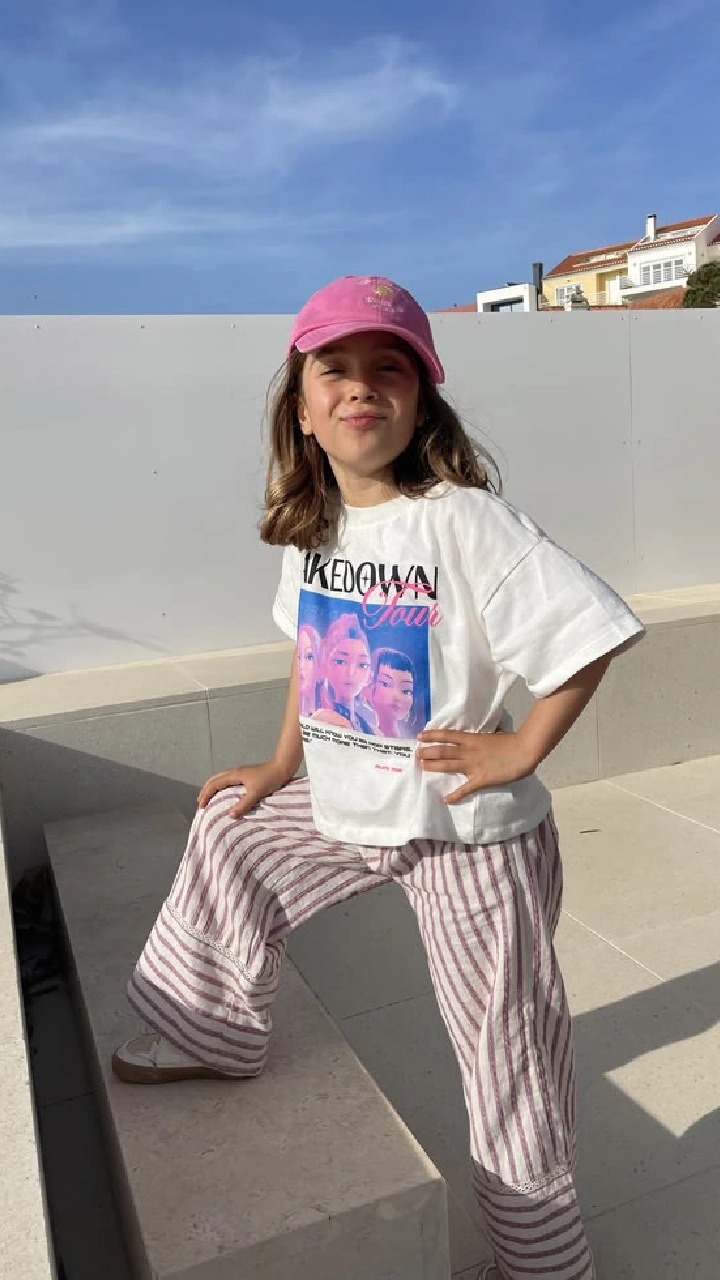
| Full-body photo | Complete outfit, pants, shoes and overall colors |
If your favorite selfie only shows your head and shoulders, you can still use it. The AI will create the rest of the Minecraft character from the visible information rather than requiring a full-body photograph.
A Selfie to Minecraft Skin Is Not Just a Pixelated Photo
Simply reducing a selfie to 64×64 pixels does not create a usable Minecraft skin. A real skin is a structured texture with specific areas for the head, torso, arms, legs and their different sides. Photo2Skin rebuilds the person inside this layout so the resulting PNG wraps correctly around the Minecraft player model. If you want the technical explanation, see our guide on how to turn a photo into a Minecraft skin.
Go Viral on TikTok, YT, Instagram With Your Selfie-to-Skin Reveal
Turn your selfie-to-Minecraft skin transformation into a short reveal video for TikTok, YouTube Shorts or Instagram Reels. Show the original selfie first, reveal your Minecraft version and finish with a 3D rotation of the skin. This before-and-after format has reached hundreds of thousands of views and gives you a simple way to share your new skin. See our Minecraft skin filter and selfie-to-skin video guide to create your own.
@minewillcraft — Photo to Minecraft skin
Ideas for Your Selfie Minecraft Skin
You do not have to copy your everyday appearance exactly. Your selfie can provide the recognizable face and hairstyle while you use the generated result as a starting point for a different version of yourself.
- Recreate the outfit you are wearing in the selfie.
- Use a selfie with glasses, a hat or a distinctive hairstyle.
- Turn a vacation or event photo into a Minecraft character.
- Generate matching skins from photos of friends.
- Edit the result into a fantasy, survival or roleplay version of yourself.
- Use an old photo to recreate a previous hairstyle or outfit in Minecraft.
Can You Turn Someone Else's Photo Into a Minecraft Skin?
A photo can also be used as a reference for a skin of a friend or family member when you have permission to use it. This can work well for matching multiplayer skins, gifts or a group Minecraft world. For fictional characters, drawings, game avatars or digital artwork rather than real photos, use the Image to Minecraft Skin Generator, which is designed for character images and illustrations.
Use Your Selfie as a Real Minecraft Skin
Once you are happy with the result, download the generated PNG and set it as your Minecraft character skin. Photo2Skin generates a real 64×64 skin rather than a rendered character image, so the file can be used as a custom skin in Minecraft Java and Bedrock. If you have never installed one before, follow our guide on how to change or import a custom Minecraft skin.
Selfie to Minecraft Skin FAQ
Can I turn a selfie into a Minecraft skin?
Yes. Upload a selfie to Photo2Skin and the AI can recreate your visible face, hair, clothing and colors as a real 64×64 Minecraft skin that you can preview, edit and download.
Does my selfie need to show my whole body?
No. A clear head-and-shoulders selfie can be enough to generate a skin. A full-body photo simply gives the AI more information about your complete outfit, including pants and shoes.
What kind of selfie works best for a Minecraft skin?
Use a clear, well-lit photo where your face and hair are visible. Showing part of your outfit is useful if you want the Minecraft skin to reproduce your clothing as well. Avoid heavy filters, motion blur and images where important details are hidden.
Will the Minecraft skin look exactly like my face?
No Minecraft skin can reproduce a photograph exactly because a character face is represented with a very small number of pixels. The goal is to preserve recognizable features such as hair, skin tone, glasses, clothing and colors in a design that works within the Minecraft skin format.
Is the result a real Minecraft skin or just an AI image?
The Photo2Skin result is a real 64×64 PNG arranged on the Minecraft skin texture layout. It can be downloaded and used as a playable custom skin rather than only viewed as an AI-generated character image.
Can I edit my selfie Minecraft skin after generating it?
Yes. Open the generated result in the Minecraft Skin Editor to change colors, edit individual pixels, adjust clothing or add details before downloading the final PNG.
Can I use my selfie skin in Minecraft Java and Bedrock?
Yes. The generated 64×64 PNG uses the standard Minecraft skin format and can be used as a custom skin in Java and Bedrock, although the steps for importing a custom skin differ between the two editions.
Can I make a TikTok or Reel from my selfie-to-Minecraft transformation?
Yes. A simple format is to show the original selfie first and then reveal the generated Minecraft skin, followed by a rotating 3D preview. You can record the result and use the before-and-after transformation for TikTok, Instagram Reels or YouTube Shorts.