
How to Find a Minecraft Skin Filter for TikTok, Instagram & Snapchat
If you are searching for the Minecraft skin filter you have seen on TikTok, you are probably looking for the effect that turns a real person into a Minecraft-style character. The problem is that many of the older examples still circulating on TikTok were connected to the promotional wave around A Minecraft Movie, and the original effect people used in those videos may no longer be available or working.
How to Record a Minecraft Skin Filter Reaction
Once your Minecraft skin has been created and saved, open the character from your skin history. On the saved skin screen, select Share Video Reaction.
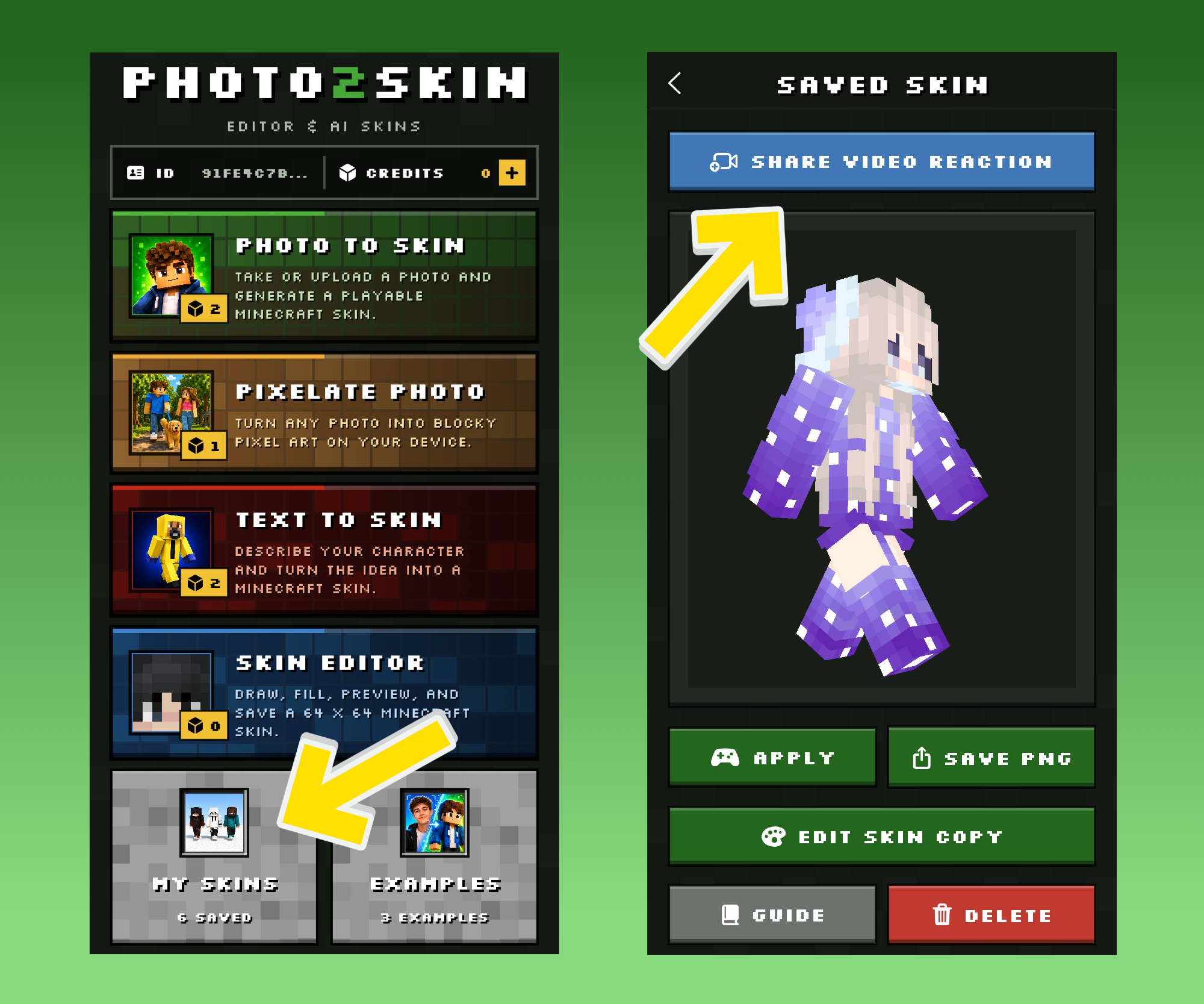

The reaction feature lets you record a short camera video featuring the Minecraft character you generated. This creates the type of real-person-to-Minecraft reveal people expect when searching for a Minecraft skin filter.
Because the feature starts from your saved skin, the character in the reaction is actually the one created from your photo rather than a generic Minecraft model selected by a social platform.
What Is the Minecraft Skin Filter?
The Minecraft skin filter trend is simple: show a real person on camera and reveal what they would look like as a Minecraft character. Older TikTok videos made this effect popular, but the exact filter used in many of those examples can now be difficult or impossible to find.
Photo2Skin recreates the idea in a more useful way by generating an actual Minecraft skin from your photo. Once created, the skin stays in your history, can be previewed in 3D, and can be used to record a reaction video for TikTok, Instagram, Snapchat, or other social platforms.
Examples of the Original Minecraft Skin Filter on TikTok
If you discovered this trend through TikTok, the videos probably look similar to the examples below. A person appears on camera, the Minecraft transformation is triggered, and a block-style character is revealed.
These examples are useful for understanding the search intent behind the trend: people do not simply want a random Minecraft face overlay. They want to know what they would look like as a Minecraft skin.
The older filter people remember was associated with the promotional period around A Minecraft Movie. Campaign effects and social filters are often temporary, so an effect shown in an older TikTok may later disappear, stop functioning, or become difficult to locate. That is why searching TikTok today for the exact same Minecraft skin filter may not give you the effect shown in older videos.
The Minecraft Skin Filter Is Gone? Here Is an Alternative
If the Minecraft skin filter you were looking for is no longer working, you can create the same type of content with Photo2Skin while also getting something the old effect did not necessarily give you: your own saved Minecraft skin.
The short version: generate a skin from your photo, save it, open it, tap Share Video Reaction, and post the recording. The full walkthrough is just below.
You can therefore go from a normal photo to a Minecraft character and then to a TikTok-ready reaction video without manually drawing a skin pixel by pixel.
Minecraft Skin Filter Examples Made With Photo2Skin
You can create skins of yourself, friends, family members, creators, or any photo you have permission to use. Different photos can also produce different character designs, making the feature useful for comparison videos and Minecraft transformation challenges.
How to Make a Minecraft Skin Filter From Your Photo
1. Open Photo to Skin
Download Photo2Skin App for iPhone or iPad here or start in the web App Photo to Skin. This feature is designed specifically for converting a real image into a Minecraft skin.
2. Take or Upload a Photo
Take a new photo or choose one from your device. For better results, use a clear image where the face, hair, and clothing are easy to see.
3. Generate Your Minecraft Skin
Photo2Skin turns the photo into a complete Minecraft-compatible skin, mapping the design across the full character instead of applying a temporary face effect.
4. Preview Your Character in 3D
After generation, you can view the skin as a 3D Minecraft character. This gives you a much clearer idea of how the design looks than viewing only a flat PNG texture.
Rotate and inspect the character before saving it. If you want to make changes later, you can create an editable copy and use the Minecraft Skin Editor.
5. Save the Skin to Your History
Save the generated character so it appears in My Skins. Your skin history is important because this is where you can return to previously generated characters and create reaction videos from them.
You do not need to record your reaction immediately. Generate a skin today, save it, and open it again later when you are ready to make your video.
From Photo to Minecraft Skin to TikTok Video
The complete workflow looks like this:
Photo → AI Minecraft Skin → Saved Skin → Video Reaction → TikTok, Reels, Snapchat or Shorts
This workflow also means you are not dependent on a single TikTok effect remaining online. Your Minecraft skin exists independently inside your saved collection, and you can make content with it whenever you want.
How to Post Your Minecraft Skin Filter Video on TikTok
Once your reaction is recorded, save the video and share it to TikTok. Add your favorite sound, text, captions, or other edits before publishing.
You don't need the original Minecraft TikTok filter. Photo2Skin creates your custom skin and reaction video first, ready to post on TikTok.
Can You Use the Minecraft Skin Filter on Instagram?
Yes. Your Photo2Skin reaction is not locked to TikTok. After creating and saving the video, you can share it to Instagram and use it in a Reel.
You can then add music, captions, stickers, or other Instagram editing features before posting. The same Minecraft reaction can also be reused across multiple platforms instead of creating a separate character for every social network.
Can You Use It on Snapchat?
You can also save your Minecraft skin reaction and share it through Snapchat. This gives you an alternative to searching through Snapchat lenses for a particular Minecraft skin filter.
Create the character in Photo2Skin first, record your reaction, and then use the finished video in Snapchat.
Can You Post the Minecraft Skin Reaction on YouTube Shorts?
Yes. Because the reaction can be saved as a video, it can also be uploaded to YouTube Shorts or another platform that supports short-form video.
You are not creating a TikTok-only effect. You are creating reusable content around your own Minecraft character.
Minecraft Skin Filter vs. Photo2Skin
| Feature | Typical Social Minecraft Filter | Photo2Skin Reaction Video |
|---|---|---|
| Uses your own photo | Depends on the effect | Yes |
| Creates a custom character | Often temporary | Yes |
| Creates a complete Minecraft skin | Usually no | Yes |
| 3D character preview | Depends on the filter | Yes |
| Skin saved for later | Usually no | Yes |
| Save Minecraft skin PNG | No | Yes |
| Edit generated skin | No | Yes |
| Record a reaction video | Depends on the effect | Yes |
| Post to different social networks | May be platform-specific | Yes |
It Is More Than a Minecraft Face Filter
If all you want is a temporary Minecraft effect over your face, a basic social filter can do that. Photo2Skin is intended for a different result: creating a character you can actually keep.
Your generated design becomes a complete Minecraft skin. After making your reaction video, you can still open the same character from your saved skins, export the skin PNG, edit it, or apply it in Minecraft.
This makes the process useful even after the social trend changes. The reaction video may be the reason you create the character, but the Minecraft skin remains yours afterward.
Edit Your Minecraft Skin After Generating It
If you like the generated skin but want to adjust something, open the saved character and create an editable copy. You can then use the 64×64 Minecraft Skin Editor to change individual areas of the design.
For example, you might want to adjust clothing colors, hair details, accessories, or individual pixels. You can preview your changes before saving the edited version. Our step-by-step skin editor guide walks through the tools, layers and 3D painting in detail.
This also gives you another type of content idea: show the AI-generated version first, customize it manually, and then reveal the finished edited skin.
Save the Minecraft Skin as a PNG
The character created from your photo can also be saved as a Minecraft skin PNG. On the saved skin screen, use the Save PNG option to export the skin file to your device.
This is another important difference from a normal Minecraft filter. A filter gives you an image or video effect. Photo2Skin gives you both the social content and the underlying Minecraft skin.
Apply Your Generated Skin in Minecraft
If you want to go beyond the TikTok trend, you can use the generated character as your Minecraft skin. Open the saved skin and choose the available apply option, or save the PNG and follow the appropriate installation process for your version of Minecraft. If you are new to this, see our guide on how to turn a photo into a Minecraft skin.
That means the character shown in your reaction can become the same character you use when playing Minecraft.
Other Ways to Create a Minecraft Skin
A photo is not the only way to make a character in Photo2Skin. If you have a specific character idea but do not have a suitable image, use Text to Skin. Describe the character you want and generate a Minecraft skin from the prompt. Our guide on how to make a Minecraft skin with AI covers both approaches.
You can also use Pixelate Photo when you want to turn an ordinary picture into blocky pixel art rather than generate a wearable Minecraft skin. See how to turn a photo into Minecraft pixel art for the full walkthrough.
For full manual control, open the Minecraft Skin Editor and create or modify a 64×64 skin directly.
Minecraft Skin Reaction Video Ideas
Once you can generate and save your own characters, you are not limited to making the same Minecraft filter video repeatedly. Try different concepts with the same workflow.
- Turn yourself into a Minecraft skin: use a selfie and react to the result.
- Turn your friend into a Minecraft character: generate their skin and record their reaction.
- Who has the better Minecraft skin? generate two people and compare the results.
- Photo vs. Minecraft skin: show the original picture beside the generated character.
- Different outfit challenge: generate skins from several photos wearing different clothes.
- Old photo challenge: turn an older photo into a Minecraft character.
- Group Minecraft transformation: make separate skins for several friends and compare them.
- AI skin vs. edited skin: generate a character and then customize it in the skin editor.
What Photo Works Best for a Minecraft Skin Filter?
You do not need a professional photograph, but the generator needs enough visual information to interpret the person. For a strong result, choose an image where the important characteristics are visible.
- Use a clear photo rather than a heavily blurred image.
- Keep the person's face visible.
- Use sufficient lighting to distinguish major colors and details.
- Choose a picture where clothing is visible if the outfit matters to you.
- Avoid covering most of the person with objects or extreme camera effects.
If the first skin is not the look you wanted, try another image. A different photograph can emphasize different hair, clothing, colors, and other characteristics.
Minecraft Skin Filter FAQ
What is the Minecraft skin filter?
The Minecraft skin filter is a social video concept where a real person is transformed or revealed as a Minecraft-style character. People commonly search for the effect after seeing Minecraft transformation videos on TikTok.
Where can I find the Minecraft skin filter on TikTok?
Some older Minecraft skin filter examples continue to appear in TikTok videos even when the effect originally used to make them is no longer easy to find or available. If you cannot access the old effect, you can recreate the concept by generating a Minecraft skin from your photo in Photo2Skin and recording a video reaction with the saved character.
Is the old Minecraft skin TikTok filter gone?
The specific older effect shown in some viral videos may no longer be available or may stop working as social platforms and promotional campaigns change. The videos can remain online even after the effect used to make them disappears.
Was the Minecraft filter connected to A Minecraft Movie?
Minecraft-themed effects became particularly visible around the promotional period for A Minecraft Movie. If you are looking for an older movie-era effect that is no longer available, Photo2Skin provides another way to create the real-person-to-Minecraft-skin concept.
How do I make my own Minecraft skin filter?
Upload or take a photo in Photo2Skin, generate your Minecraft skin, save the result, open the character from your skin history, and select Share Video Reaction. Record the video and save it for sharing on your preferred social network.
Can I turn my face into a Minecraft skin?
Yes. Photo2Skin can use a photo of you to generate a complete Minecraft character. The finished result can be previewed in 3D and saved as a Minecraft skin.
Can I turn a selfie into a Minecraft skin?
Yes. Take a selfie or upload one you already have and use Photo to Skin. A clear image where your face and appearance are visible generally gives the generator more information to work with.
How do I do the Minecraft skin trend on TikTok?
Create a skin from your photo, save it, open Share Video Reaction, and record yourself with the generated Minecraft character. Save the finished reaction and upload it to TikTok, where you can add your preferred audio, caption, text, and other edits.
Does Photo2Skin create a real Minecraft skin?
Yes. The result is a Minecraft skin rather than only a temporary camera overlay. You can keep the character in your saved skins and export the skin PNG.
Can I use my generated Minecraft skin in the reaction video?
Yes. After a skin is generated and saved to your history, open the saved character and use the Share Video Reaction option to create a reaction featuring that skin.
Can I save the Minecraft filter video?
Yes. After recording the reaction, save the completed video so you can post or share it through supported social and messaging apps.
Can I post my Minecraft skin video on Instagram Reels?
Yes. Save the reaction and share or upload the video to Instagram Reels. You can then finish the post using Instagram's normal audio, caption, and editing tools.
Can I use the Minecraft skin reaction on Snapchat?
Yes. The reaction can be saved and shared through Snapchat rather than relying on a specific Snapchat Minecraft lens.
Can I upload the reaction to YouTube Shorts?
Yes. Once the video is saved, you can use it as short-form content on YouTube Shorts or another platform that accepts the video format.
Can I save my Minecraft skin after recording the reaction?
Yes. Your saved skin and reaction video are separate. The character remains in your skin history even after you create a reaction video.
Can I download my generated Minecraft skin?
Yes. Open your saved character and use the Save PNG option to save the Minecraft skin file to your device.
Can I edit the skin generated from my photo?
Yes. Create an editable copy of the saved character and open it in the Minecraft Skin Editor. You can adjust individual parts of the design and save the edited version separately.
Do I need to manually make a Minecraft skin pixel by pixel?
No. Photo to Skin generates the initial Minecraft character from your image automatically. Manual editing is optional if you want to customize the generated result afterward.
Can I create more than one Minecraft skin from different photos?
Yes. You can generate different characters from different images and keep the saved results in your skin collection. This is useful for comparing friends, outfits, photos, or different character ideas.
What is the difference between a Minecraft face filter and a Minecraft skin generator?
A Minecraft face filter usually changes what you see through the camera temporarily. A Minecraft skin generator creates the actual texture used for a complete Minecraft character. Photo2Skin generates the skin first and then lets you use that saved character in a reaction video.
Can I use the generated character in Minecraft too?
Yes. The character is not limited to your reaction video. You can save the generated skin and use the available apply or export options to continue using it as a Minecraft skin.