

How to Turn a Photo Into Minecraft Pixel Art
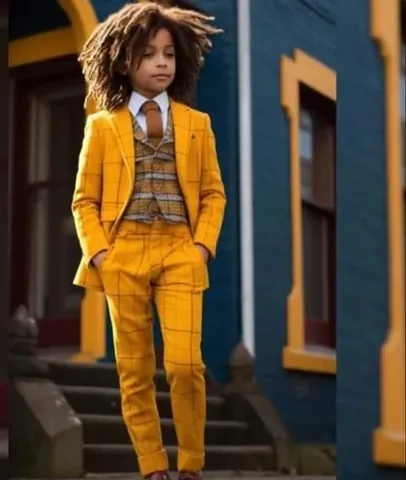
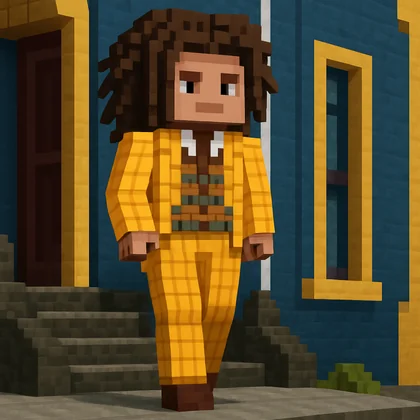
"Pixelate" is the quick word for it, but here's the plain version: you take a normal photo and turn it into a Minecraft-style, blocky pixel-art image — the same person, pet, or scene, redrawn like it belongs inside a block game. It's meant to be fun and shareable: a profile picture, a post, a laugh to send a friend.
One thing to get straight up front, because it trips people up: this makes an image, not a wearable skin. Below is what that means, how to do it in a few seconds, and how to get a result that still looks like you.
The short version
- Pick a clear photo with the subject easy to see.
- Run it through a Minecraft-style pixel-art tool.
- Download the finished image and share it.
What "pixelate a photo" actually means here
This isn't the old trick of blurring a photo into big fuzzy squares. A Minecraft-style pixelate redraws your photo in a blocky, low-resolution art style: chunky pixels, punchy game-like colors, and that retro 8-bit feel — while keeping the main subject recognizable. Think "my selfie, but it looks like it was built out of blocks," not "my selfie with a filter smeared on top."
The goal is a picture that reads as Minecraft at a glance but is still clearly you (or your dog, or your squad). That balance — blocky style, recognizable subject — is the whole point.
Pixel-art photo vs a playable skin — don't mix them up
These two get searched for together, so it's worth being clear, because they give you completely different files:
| Pixelate a photo | Photo → skin | |
|---|---|---|
| What you get | A Minecraft-style image | A real 64×64 skin file |
| What it's for | Sharing, posting, profile pics | Wearing in-game on your character |
| Works in Minecraft? | No — it's a picture, not a skin | Yes — upload to Java or Bedrock |
So if you want a fun blocky picture, pixelate it. If you want to actually become your photo in-game, that's a different tool — see how to turn a photo into a Minecraft skin. Same photo, pick the output you actually want.
What you can pixelate
Pretty much any photo with a clear subject works. The most popular ones:
- Selfies — your own blocky profile picture or avatar.
- Friend and group photos — turn a hangout shot into a game-style scene.
- Pets — dogs, cats, and other animals make great blocky characters.
- Favorite pics — a character photo, a vacation shot, anything you want reimagined in Minecraft style.
How to turn your photo into Minecraft pixel art
With Photo2Skin's pixelate tool it's three steps and a few seconds:
- Upload your photo. A clear shot with the subject easy to see gives the cleanest result.
- Let the AI redraw it. It converts your image into a Minecraft-style pixel-art version, keeping the subject recognizable.
- Download and share. Save the image and use it as a profile picture, a post, or a message to a friend.
It runs in any browser, and there's an iOS app if you'd rather do it on your phone.
How to get the best result
The style is forgiving, but the input still matters. A few things that help:
- Use a clear, well-lit photo. Good light keeps the subject readable once it's blocky.
- Keep the main subject front and center. Faces that are easy to see survive the pixel style best.
- Prefer a simpler background. A busy background turns into blocky noise and pulls focus off the subject.
- Skip heavy filters. Let the tool add the style — starting from a clean photo gives it more to work with.
Frequently asked questions
Is a pixelated photo a Minecraft skin I can wear in-game?
No. Pixelating a photo gives you a Minecraft-style image — a picture you can post, print, or set as a profile photo. It's not a 64×64 skin file, so you can't upload it to your account and wear it. If you want a skin you can actually play as, use a photo-to-skin tool instead.
Can I turn my dog or cat into Minecraft pixel art?
Yes. Pets work well. Upload a clear photo of your dog, cat, or any animal with its face visible and you'll get a blocky, Minecraft-style version back. The same works for selfies, group photos, and profile pictures.
What's the difference between pixelating a photo and a photo-to-skin tool?
Pixelating makes an image — a fun, blocky picture of your photo to share. A photo-to-skin tool makes a wearable 64×64 skin file you upload to Minecraft and play as. Same starting photo, two different outputs: one is art, the other is a playable character.
Is it free to turn a photo into Minecraft pixel art?
It varies by tool. Some include a limited number of free generations and then charge; others are paid up front. Whatever you use, check that you can actually download the finished image, not just preview it on the page.
Can I make a Minecraft-style photo on my phone?
Yes. The whole thing runs in a mobile browser or app, so you can pick a photo from your camera roll, generate the pixel art, and save it straight to your phone — no PC needed.
What photo gives the best Minecraft pixel art?
A clear, well-lit shot where the main subject is easy to see. Visible faces and a simple background help the AI keep the subject recognizable through the blocky style. Very dark, blurry, or cluttered photos give muddier results.
Can I use the pixel art as a profile picture or print it?
Yes. The result is a normal image file, so you can set it as a profile picture, post it on social media, send it to friends, or print it like any other photo.
Go blocky
Pixelating a photo is the low-effort, high-fun corner of Minecraft creativity: upload a picture, get a blocky, game-style version back in seconds, and share it. Just remember the one distinction — this makes an image, not a skin. When you want the fun picture, turn your photo into Minecraft pixel art; when you want to actually wear it in-game, make it a real skin instead.