

Minecraft Skin Maker
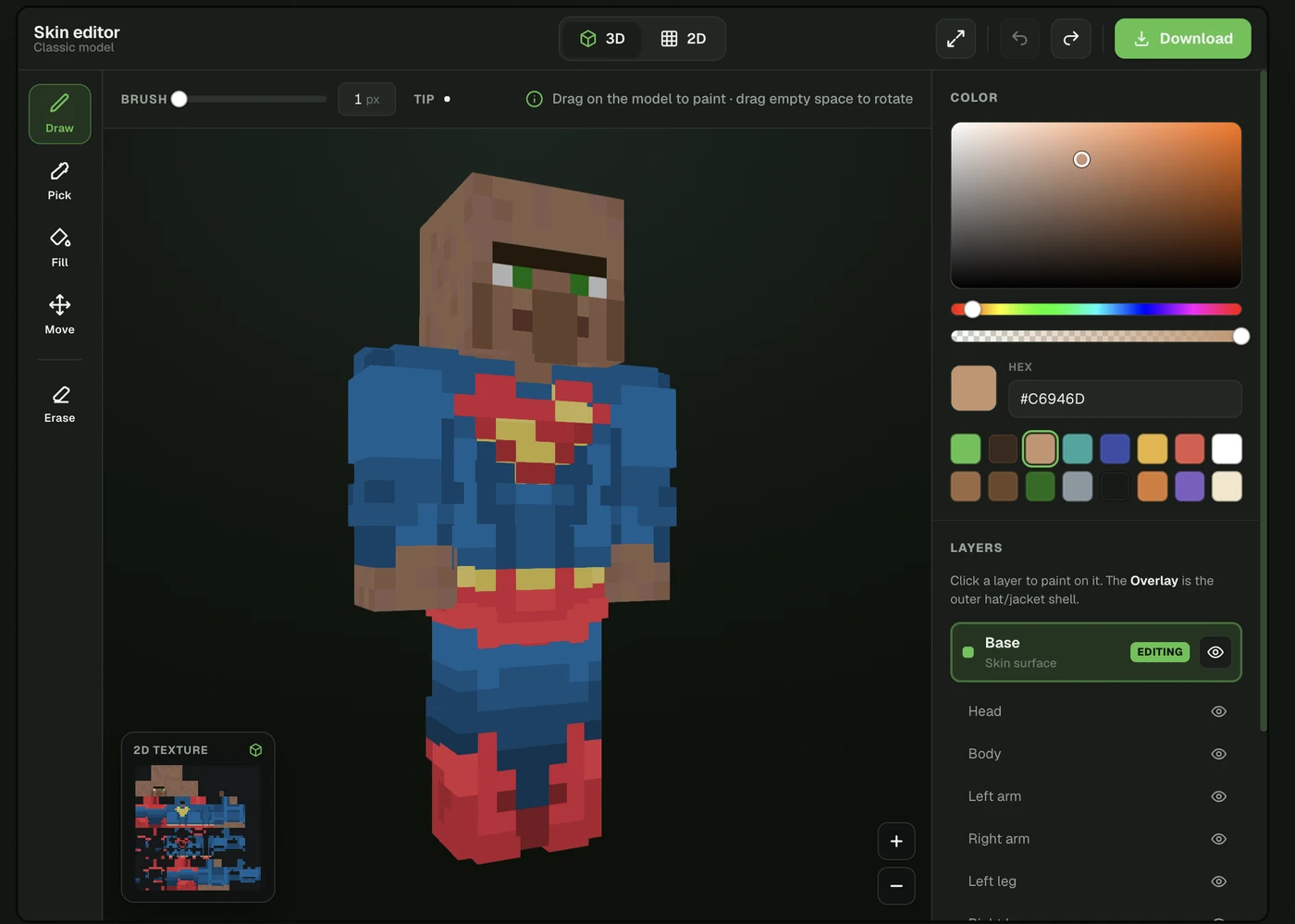
A Minecraft skin maker creates the skin for you — no blank grid, no pixel-art skills. Photo2Skin makes a skin from a photo or a text prompt with AI in about a minute, then hands you a real skin editor to make it yours: paint on the 3D model, fix a detail, change a color, add a logo. Prefer to build by hand? You can make one from scratch too.
Here are the three ways to make a skin, what you can do once you have one, and how the maker compares to a classic hand-drawing tool like the Skindex.
The short version
- Make a skin. Upload a photo, type a description, or start from a blank editor.
- Edit it. Paint on the 3D model or the 2D grid; change colors, hair, outfit, details.
- Download or apply. Export a real 64×64 PNG for Java or Bedrock — or, on iPhone/iPad, send it to Minecraft in a tap.
Three ways to make your Minecraft skin
You don't have to start from a blank canvas. Pick whichever fits what you have.
| Start from | How it works | Best when |
|---|---|---|
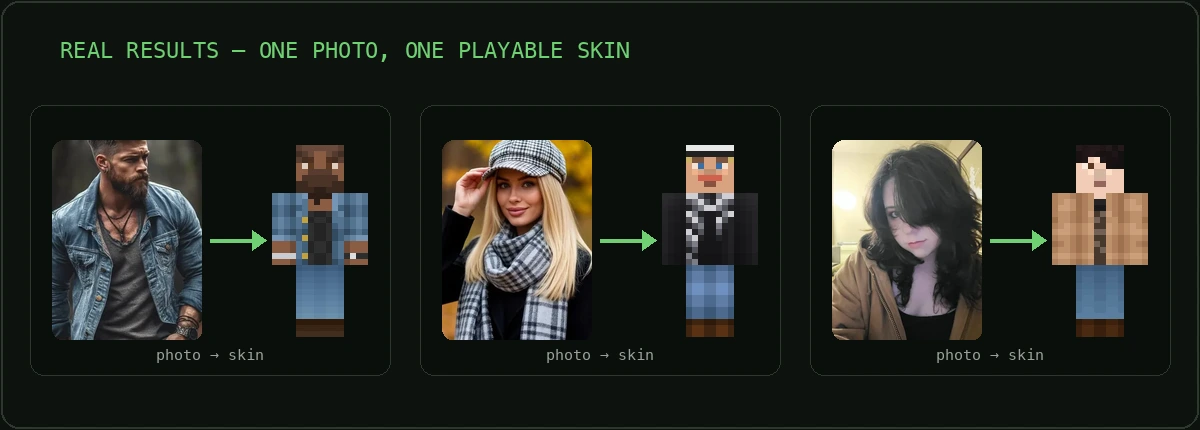
| A photo | Upload a selfie and the AI redraws you as a proper blocky character — you get 3 style variants. | You want a skin that looks like you. |
| A text prompt | Describe a character in words ("ninja in a red hoodie") and the AI builds it — again, 3 variants. | You have an idea but no photo. |
| Scratch / your own PNG | Open the editor on a blank template, or upload an existing 64×64 skin and edit it. | You want full control, or to fix a skin you already have. |
The photo and text routes are the fast lane: instead of drawing a face pixel by pixel, you get a finished, correctly mapped skin in about a minute, then edit from there. For the full detail on those, see how to turn a photo into a Minecraft skin and how to make a Minecraft skin with AI.
Maker vs editor: what's the difference?
People search for both, and they're two halves of the same job. A maker creates a skin for you; an editor lets you change one pixel by pixel. Photo2Skin does both — get a strong starting point instantly, then refine it in the Minecraft skin editor.
| Skin maker | Skin editor | |
|---|---|---|
| What it does | Creates a brand-new skin for you | Edits an existing skin, pixel by pixel |
| Best for | Getting a great skin fast, with no drawing | Tweaking, fixing and personalizing a skin |
| In Photo2Skin | Photo → skin, or text → skin (AI) | 2D grid + paint-on-3D-model editor |
Then refine it in the skin editor
Once you have a skin — AI-made or your own upload — the editor is where you make it exactly right. It works in 2D and 3D: paint on the flat pixel grid like a classic skin editor, or paint directly on the 3D model — drag on the character to paint, drag empty space to rotate it. A live 3D preview means you never guess how a pixel will wrap onto the head or arm.
The toolset is what you'd expect from a proper editor:
- Draw — paint pixels with an adjustable brush size (1–8 px).
- Fill — flood-fill a whole region in one click.
- Pick — eyedropper any pixel to grab its exact color.
- Erase — clear pixels back to transparent.
- Move — pan and zoom to get in close.
- Color picker — full HSV picker, hex input, alpha, and quick swatches.
- Layers — edit the base skin and the overlay (the outer hat/jacket/sleeve shell) separately, per body part.
- Classic or Slim — switch between Steve (4px arms) and Alex (3px arms) so the skin fits your model.
- Mirror mode — paint one side and the other mirrors automatically, for symmetric skins in half the strokes.
- Undo / redo — 50 steps of history, with ⌘Z / ⌘⇧Z.
New to the editor? Walk through every tool in how to use a Minecraft skin editor.
Works on iPhone, iPad, and in your browser
The maker runs wherever you do. Open the web app in any desktop or mobile browser — nothing to install — or get the iOS app for iPhone and iPad, which adds mirror mode and a one-tap apply and lays out for the bigger iPad screen. Make a skin on your phone during the bus ride, tap it into Minecraft, and play. You can start for free before you decide on a plan. See how it compares in our roundup of the best Minecraft skin editor apps for mobile.
Skins for Java and Bedrock
Whatever you make comes out as a standard 64×64 PNG — the one file format that works across both editions. The only difference is how you apply it:
- Java (PC/Mac). Sign in at minecraft.net, open the Skins page, pick Classic or Slim, and upload your PNG.
- Bedrock (Windows, mobile, console). Open the in-game Dressing Room, go to Classic Skins, choose Import, and pick your PNG. On iPhone/iPad, the app's one-tap Apply drops you right here.
Step-by-step, with screenshots: see how to change or import a custom Minecraft skin.
Minecraft skin maker vs the Skindex
The Skindex (part of minecraftskins.com) is one of the best-known skin sites: a free, browser-based editor with an enormous community library you browse and draw by hand. It's a great tool if you want to design from scratch or grab a ready-made skin. Photo2Skin takes a different angle — it's a maker that starts from a photo or text with AI, then hands you a real editor to refine the result.
| Feature | Photo2Skin | The Skindex |
|---|---|---|
| Make a skin from a photo | Yes — AI redraws you | No — you draw it by hand |
| Make a skin from a text prompt | Yes — AI builds it | No |
| Edit pixels (2D grid) | Yes | Yes |
| Paint on the rotating 3D model | Yes | 2D editor with a 3D preview |
| Community skin library | Focused on making your own | Yes — huge browsable library |
| iPhone / iPad app | Yes — iOS app | Browser only |
| One-tap apply to Minecraft | Yes (iPhone/iPad) | Download, then upload yourself |
| Price | Free to start | Free |
Short version: reach for the Skindex when you want to hand-draw a skin or pull one from its library, and reach for the Photo2Skin maker when you want to start from a photo of yourself (or an idea in your head) and edit from a strong first draft. Weighing all the options? We compared five feature by feature in the top 5 Minecraft skin editors.
Frequently asked questions
What is a Minecraft skin maker?
A Minecraft skin maker creates a wearable 64×64 skin for you instead of asking you to draw one pixel by pixel. Photo2Skin makes a skin from a photo or a text prompt with AI in about a minute, then lets you open it in the editor to refine the result.
Can I make a Minecraft skin from a photo or from text?
Yes. Upload a photo and the AI redraws you as a real 64×64 skin, or type a description and it builds a character from your words. Either way you get three style variants and a genuine skin file you can then open in the editor to fine-tune. See making a skin with AI for the details.
Is the Minecraft skin maker free?
You can open the editor and paint, pick colors, use layers and preview in 3D for free. Making a skin from a photo or text prompt with AI uses credits, and there are free and paid plans, so you can try it before you commit.
Can I make a Minecraft skin from scratch?
Yes. Open the skin editor on a blank template and paint directly on the 2D grid or the rotating 3D model, or upload an existing 64×64 PNG and edit it.
Can I use the Minecraft skin maker on iPhone or iPad?
Yes. Photo2Skin runs in any browser and also has an iOS app for iPhone and iPad, with mirror mode for symmetric painting and a one-tap Apply that sends your skin straight to Minecraft.
Do the skins work in Java and Bedrock?
Yes. The maker exports a standard 64×64 PNG, the exact file both Java and Bedrock accept. You choose Classic (4px arms) or Slim (3px arms), then upload the PNG at minecraft.net for Java or Import it in the in-game Dressing Room for Bedrock.
Can I edit a skin the AI made for me?
Yes, and that's the intended flow. Generate a skin from a photo or text, then open it straight in the editor to change hair color, fix an eye, add a logo, or tweak the outfit before you download. If you just want a fun blocky picture instead of a wearable skin, that's a different tool — see turning a photo into Minecraft pixel art.
Make it, then make it yours
A good Minecraft skin maker should get you to a great skin, not hand you an empty grid. That's the whole idea behind Photo2Skin: start from a photo or a text prompt with AI, then use a real 2D + 3D editor — layers, mirror mode, full color control — to make it exactly you, and apply it to Java or Bedrock in a couple of taps. When you're ready, make a skin from your photo, from a text prompt, or open the editor and start building.