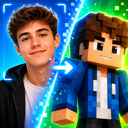

Make Minecraft Skins with a ChatGPT-Like Experience Using Prompts and Images
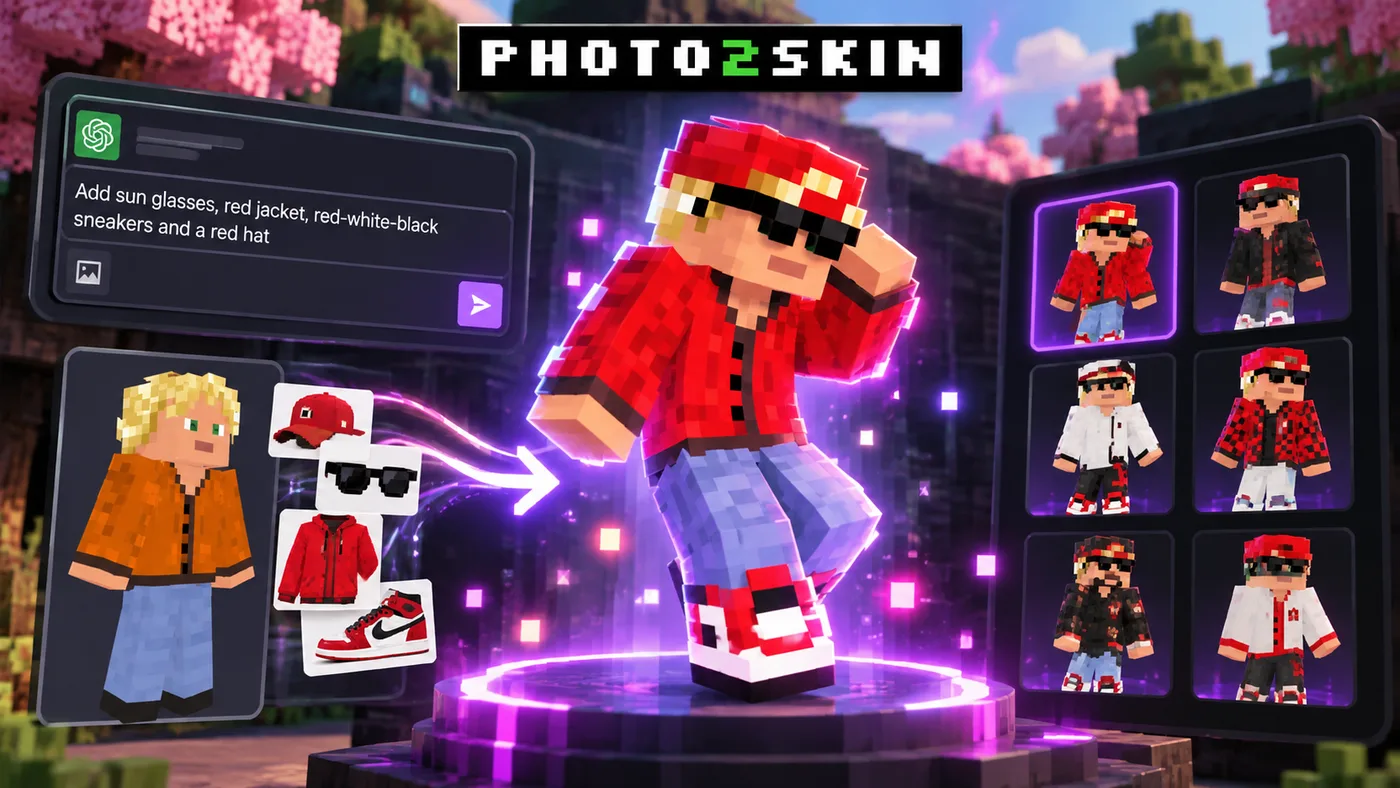
What if you could create and edit a Minecraft skin with prompts and images like in a simple ChatGPT chat by simply describing what you want? Instead of drawing every pixel, you could tell AI to add sunglasses, change an outfit, copy the colors from a reference image or turn an existing skin into a completely different character. That is the idea behind a ChatGPT-like Minecraft skin creation experience.
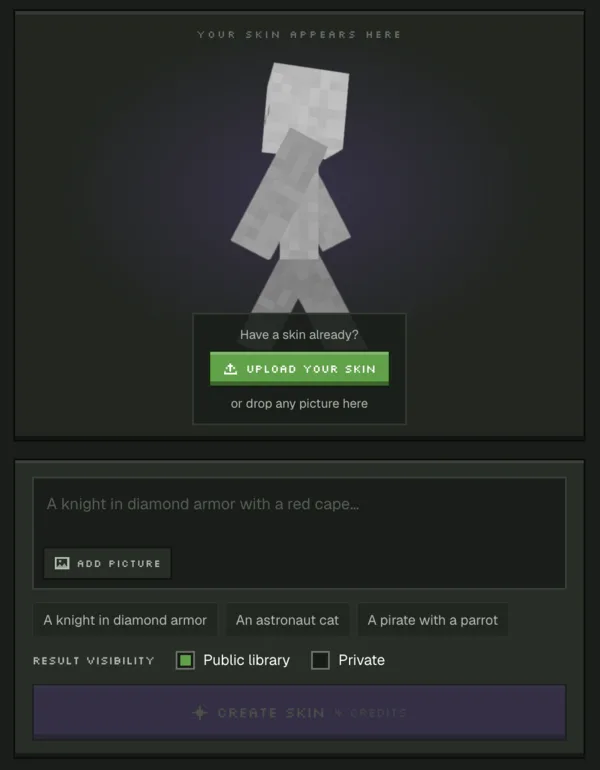
With Photo2Skin AI Skin Studio, you can create a skin from a text prompt, upload an existing Minecraft skin or reference picture and request changes using natural language. You can then preview the result in 3D, choose your preferred version and continue refining your character. The goal is a playable Minecraft skin, not just a picture of a Minecraft character.
Can You Make Minecraft Skins by Talking to ChatGPT-like AI?
Yes. You can use natural-language prompts to describe a Minecraft skin or request changes to an existing one. For example, you might write, "Make a character with blond hair, a red jacket, blue jeans and black shoes." AI interprets the description and creates a Minecraft-style character skin.
You can also start with an existing design. Instead of recreating your character from scratch, upload the skin and explain what you want to change. This makes AI especially useful when you like your character's face, hair or overall appearance but want a different outfit.
The experience feels similar to chatting with an AI assistant. You describe an idea, inspect the result and provide another instruction if something needs improvement. However, Photo2Skin is a dedicated Minecraft skin tool that produces skin files for the game, rather than a general chatbot that generates character illustrations.
How to Create a Minecraft Skin Using AI Prompts and Images
You do not need to know how to draw Minecraft skin textures. Follow these steps to create a character or modify an existing one.
1. Open AI Skin Studio
Visit Photo2Skin AI Skin Studio. You can start with a text description, upload a Minecraft skin you already use or provide a picture as a visual reference.
2. Describe the Skin You Want
Write a clear prompt describing the character's appearance. Include details such as clothing, colors, hairstyle, accessories and overall theme.
For example:
Create a Minecraft character with blond hair, an orange jacket, blue jeans and black sneakers. Keep the outfit casual and use bright, clean colors.
Specific descriptions give the AI chat more direction than short requests such as "make a cool skin." You can still start with a simple idea and add details later.
3. Upload a Reference Image
Reference images are useful when words alone cannot describe a particular look. You might upload a picture of a jacket, a pair of sneakers, a hairstyle or an entire character design.
Then explain how the AI should use that picture. For example, ask it to copy the clothing colors or recreate the general style while keeping your Minecraft character's existing face.
4. Generate and Preview Your Skin
Submit your instructions and wait for the generated result. Review the character in the 3D preview to see how the head, arms, torso and legs look together.
Pay attention to details that may be less obvious from the front, such as the back of a jacket or the sides of a hairstyle.
5. Refine the Result With Another Prompt
If the result is close but not quite right, you do not need to start over. Request another change using the generated skin as your starting point.
For example:
Keep the same face, hair and jeans. Change the orange jacket to red, add black sunglasses and make the sneakers red and white.
Review the updated result and continue until you are happy with the design.
6. Choose Your Version and Download
When AI Studio offers multiple results, compare them and choose the version you prefer. You can then download your finished Minecraft skin as a playable PNG file and import it into Minecraft.
How to Edit an Existing Minecraft Skin Without Starting Over
One of the most useful applications of AI skin editing is updating a character you already like. Maybe you have used the same skin for years, but now you want a new hoodie, different shoes or a seasonal outfit.
Upload your existing Minecraft skin and describe only the changes you want. You can also specify which features should stay the same.
Try instructions like these:
- "Keep the face and hairstyle exactly the same. Replace the hoodie with a black leather jacket."
- "Change the shirt to dark green and add a small backpack. Keep the pants and shoes."
- "Make this character look like a medieval knight, but preserve the original face."
- "Add sunglasses and a red cap. Do not change the character's skin tone or hair color."
- "Turn this outfit into a winter version with a scarf, coat and boots."
These instructions tell the AI what to preserve as well as what to change. That distinction matters when you want the updated skin to remain recognizable. AI-generated edits may still vary, so check the preview and refine the prompt when needed.
Combine a Picture and a Prompt in the Same Minecraft Skin
Sometimes you know exactly what you want because you have seen it in a photo. A written description might not capture the details, especially for clothing, color combinations or accessories.
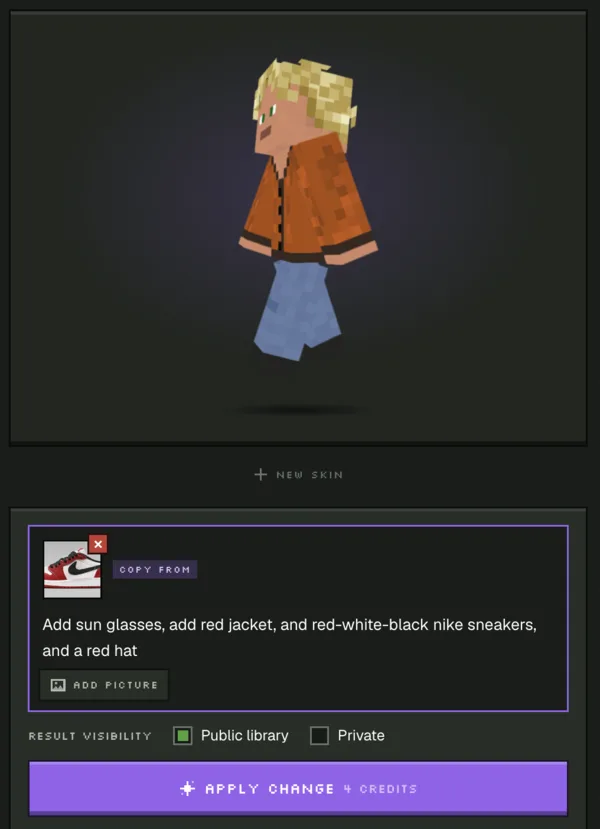
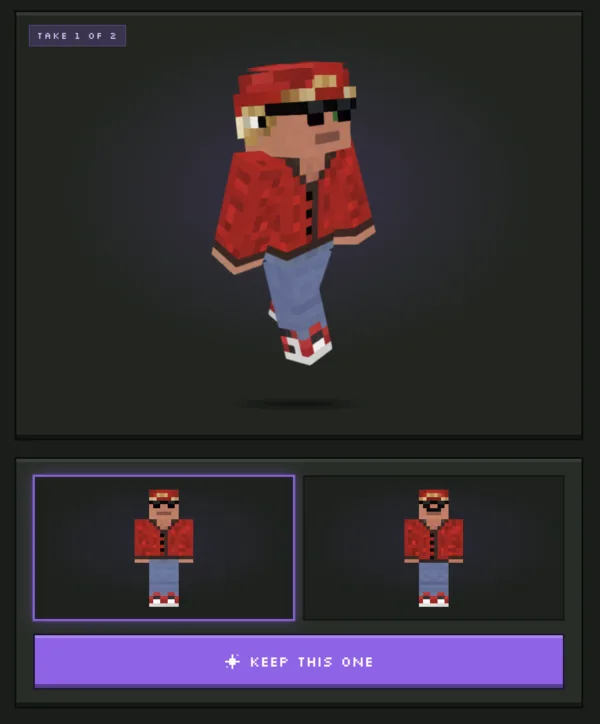
AI Studio lets you combine visual references with written instructions. In the example shown above, an existing Minecraft character has blond hair, an orange jacket and blue jeans. The editing request includes a picture of red, white and black sneakers.
The prompt asks the AI to add sunglasses, a red jacket, matching sneakers and a red hat. The resulting preview shows a new outfit while retaining the character's recognizable blond-haired appearance.
This workflow is useful for:
- Clothing references: Use a real jacket, hoodie or pair of shoes as inspiration.
- Character redesigns: Update an existing skin without rebuilding every detail.
- Matching outfits: Give several characters a shared color palette or clothing theme.
- Seasonal skins: Add Halloween costumes, winter clothing or holiday accessories.
- Custom accessories: Describe hats, glasses, masks and other recognizable details.
Best AI Prompts for Minecraft Skin Editing
A good prompt describes the desired result and identifies anything that must remain unchanged. You do not need complicated technical language. Clear, direct instructions usually make it easier to evaluate the result.
Change an Outfit
Keep my character's face and hair. Replace the current clothes with a red varsity jacket, light blue jeans and white sneakers.
Use a Clothing Reference
Use the attached sneaker photo as a reference for the shoes. Match its red, white and black color scheme. Keep the rest of the character unchanged.
Create a Fantasy Character
Create a Minecraft fantasy ranger with a dark green cloak, brown leather boots, a belt and silver hair. Use a clean, readable design.
Refine a Generated Skin
The outfit looks good. Keep the jacket and pants, but make the sunglasses smaller and change the hat to dark red.
When a prompt includes several unrelated changes, it can be harder to tell which instruction produced an unwanted result. For precise editing, consider making a few changes at a time and reviewing each version.
ChatGPT-Like Skin Creation vs. Traditional Minecraft Skin Editors
Traditional skin editors give you direct control over individual pixels. They are useful when you need exact patterns, sharp outlines or tiny corrections. However, designing an entire outfit pixel by pixel takes time.
A ChatGPT-like AI workflow approaches the same task differently. You describe the desired change and let AI generate a new version. It is especially convenient for exploring outfit ideas, working from reference images or redesigning an existing character.
The two approaches complement each other. Use AI for larger creative changes, then use a Minecraft Skin Editor when you want manual control over individual pixels.
Does ChatGPT Itself Create Playable Minecraft Skins?
ChatGPT can help you brainstorm character ideas and write detailed descriptions. However, generating an image of a Minecraft-style character is not the same as producing a correctly mapped skin texture that Minecraft can use. We tested this in Can AI make Minecraft skins?
A playable Minecraft skin requires a specific texture layout. A normal character illustration, even one that looks exactly like Minecraft, cannot simply be uploaded as a skin.
Photo2Skin AI Studio focuses on creating and editing Minecraft skin files. That is the important difference between asking a general AI assistant for character artwork and using a dedicated Minecraft skin creation tool.
Frequently Asked Questions
Can I upload a Minecraft skin and tell AI what to change?
Yes. With Photo2Skin AI Studio, you can upload an existing Minecraft skin and describe changes using text prompts. For example, you can request a new jacket, different hair color or added accessories.
Can I use a photo and a text prompt together?
Yes. You can provide a reference picture alongside written instructions. This is useful when you want AI to follow the appearance of particular clothing, colors or accessories.
Can AI keep my character's face while changing the outfit?
You can instruct AI to preserve the face, hair or other features while changing the outfit. Results can vary, so review the generated skin and make additional edits if needed.
Can I keep editing the same Minecraft skin with AI?
Yes. AI Studio supports an iterative workflow. You can generate a skin, review the result, request further changes and choose the version you prefer.
Do I need to know how to draw Minecraft skins?
No. AI prompts let you describe the character in ordinary language. If you want to adjust individual pixels later, you can use a manual Minecraft skin editor.
Will the generated skin work in Minecraft?
Photo2Skin generates downloadable Minecraft skin PNG files. Standard 64×64 skins can be used in Minecraft editions and platforms that support custom skin imports. Import options vary by platform, especially on consoles.
Is this the same as making Minecraft skins directly in ChatGPT?
No. The experience is ChatGPT-like because you describe changes in natural language and refine results through prompts. Photo2Skin is a separate tool designed to produce playable Minecraft skins.
Start Creating Minecraft Skins With AI Prompts and Images
You no longer need to choose between starting from scratch and manually editing every pixel. With AI prompts and reference pictures, you can describe a character, update an existing skin, experiment with outfits and refine the result until it matches your idea.
Whether you want to recreate a favorite pair of sneakers, give your character a new style or design an entirely different look, Photo2Skin AI Studio gives you a practical way to turn those ideas into a Minecraft skin.