
How to Make a Custom Minecraft Character
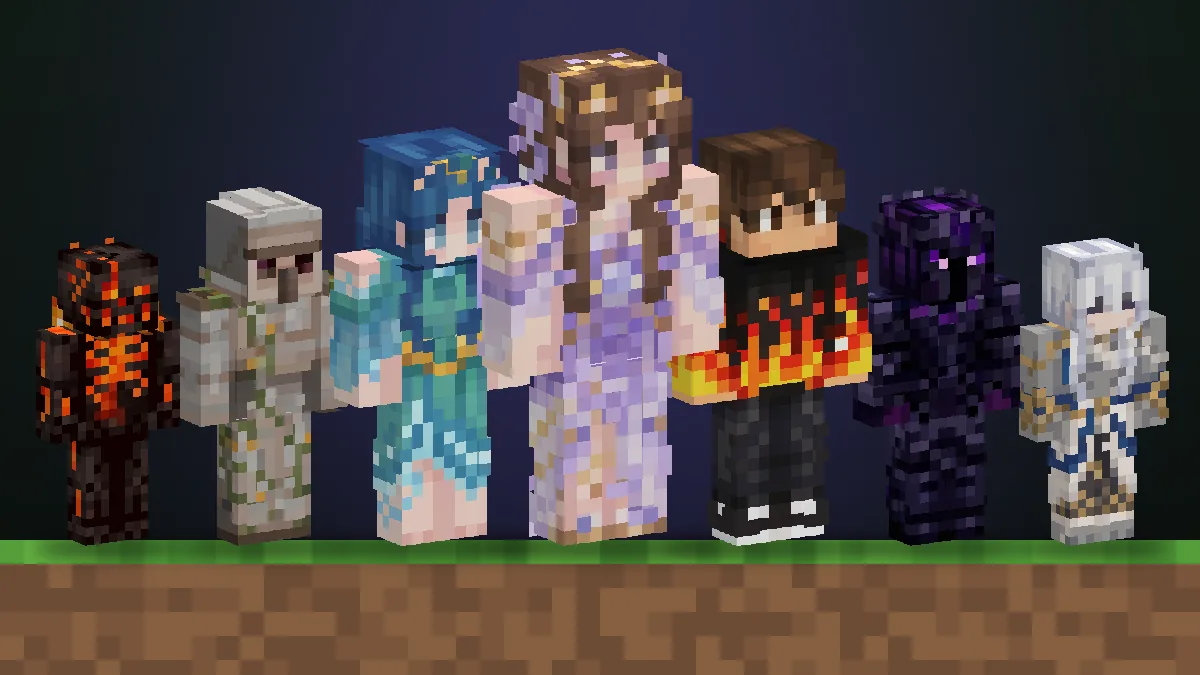
Your Minecraft character is your skin. Minecraft has no built-in character creator with sliders. Instead, every player wears a 64×64 picture that is folded around the same blocky body. Change that picture and you have a new character. It can be you in your favourite hoodie, a knight you dreamed up, or the hero of your YouTube series.
There are seven practical ways to make one, from uploading a single photo to painting every pixel yourself. Pick the starting point that matches what you have, and you can be playing as your character in a few minutes.
What a Minecraft Character Is Made Of
Before you start, it helps to know what you are actually making. The skin file is a flat map of every face of the character. It covers the front, back, sides, top and bottom of the head, body, arms and legs. Minecraft wraps it around the model for you.
| Part | What it does | Worth knowing |
|---|---|---|
| Base layer | The body itself: face, skin, clothes | Every pixel should be filled in |
| Outer layer | A second shell for hats, hair, jackets and sleeves | Can be see-through; adds depth |
| Classic model | Arms 4 pixels wide, like Steve | The default for most skins |
| Slim model | Arms 3 pixels wide, like Alex | Pick it if the skin was drawn slim |
| Face | An 8×8 square on the front of the head | Two or three pixels decide the expression |
Which Minecraft Character Maker Should You Use?
Each of these Minecraft character makers ends with the same playable skin. The difference is what you start from and how much control you want over each pixel.
| You have… | Use | Time |
|---|---|---|
| A photo of yourself or a friend | Photo to Skin | About a minute |
| An idea, but no picture | Text to Skin | About a minute |
| A skin that is almost right | AI Skin Studio | A few minutes |
| A Roblox avatar | Roblox to Minecraft Skin | About a minute |
| Fan art, a drawing or a mascot | Image to Minecraft Skin | About a minute |
| Time and a steady hand | Skin Editor | 30 minutes or more |
| No idea yet | Skin Library | Browse, then tweak |
1. Make a Character From a Photo of Yourself
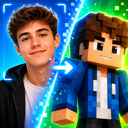
The fastest way to put yourself in the game. Photo to Skin looks at your hair, skin tone, glasses and outfit. It then draws them as a 64×64 skin that still reads as you from across a village.
- Pick a bright photo where your face and clothes are clearly visible. Head to knees is ideal.
- Upload it and wait about a minute.
- Spin the result in 3D and check the face, hair and shoes.
- Download the PNG, or open it in the editor to change a detail.
The clothes in the photo become the outfit, so wear what you want your character to wear. For more on getting a likeness right, see How to Turn a Photo Into a Minecraft Skin.
2. Describe a Character in Words
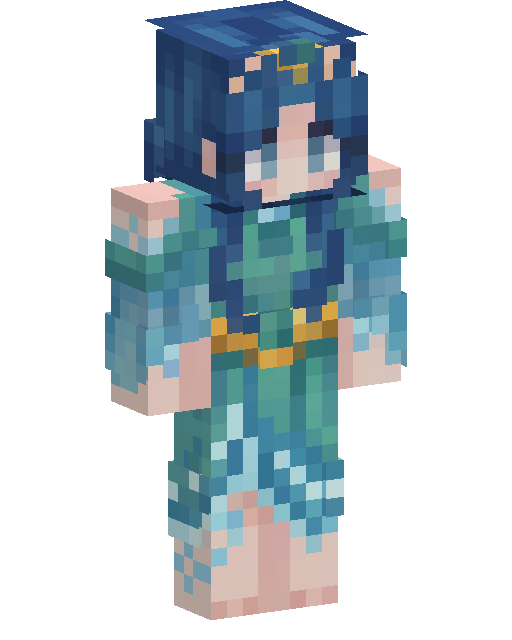
No photo? Write the character instead. Text to Skin turns a sentence into a skin, which makes it ideal for original characters, roleplay heroes and video mascots.
Good descriptions name four things: who it is, the main colours, the outfit, and one standout detail. “A young sorceress with silver hair, a white and gold robe and a glowing blue amulet” gives the AI far more to draw than “a cool wizard”.
3. Change an Existing Skin With AI
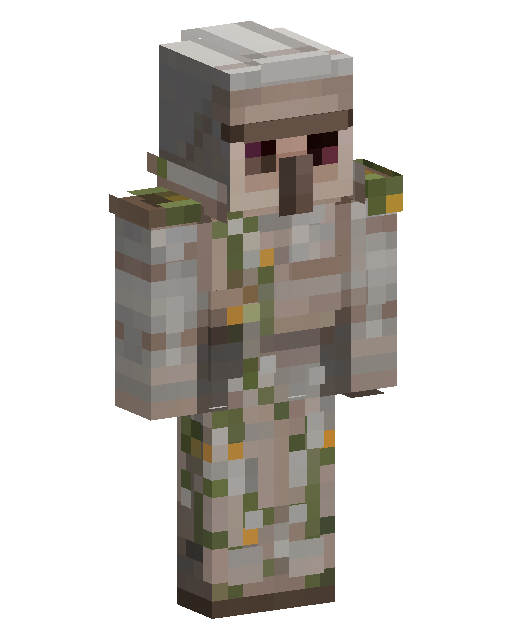
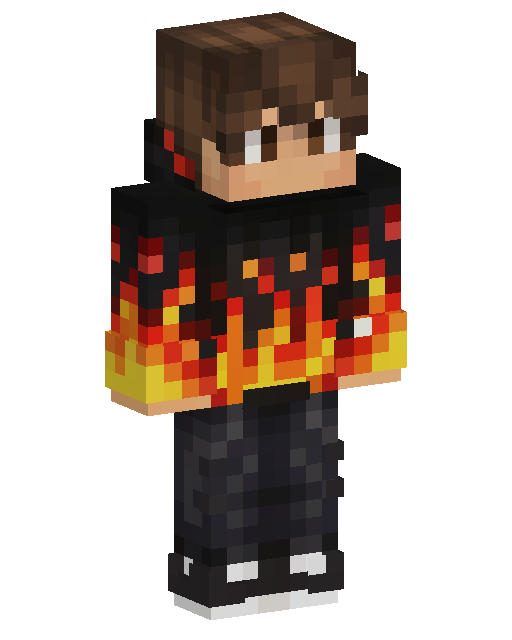
Sometimes the character is nearly there: the face is right but the jacket is wrong, or you want the same person in armour. The AI Skin Studio takes a skin you already have and changes it on request. Try “give him a red scarf” or “make the hair pink”. Each change keeps the rest of the character as it was, so you can build up a look step by step.
4. Bring Over Your Roblox Avatar
If you already spent hours on a Roblox avatar, you do not need to start again. Take a screenshot of it and upload it to Roblox to Minecraft Skin. The outfit, hair and accessories are redrawn on Minecraft’s blocky model, so your character looks like the same person in both games. The Roblox avatar guide has before-and-after examples.
5. Turn Any Picture Into a Character
Fan art, a sketch, a pet, a team mascot or a character from your own comic all work as a starting point. Image to Minecraft Skin reads the shapes and colours of the picture and builds a skin around them. Clean drawings with clear colours give the most faithful results.
6. Paint Your Character by Hand
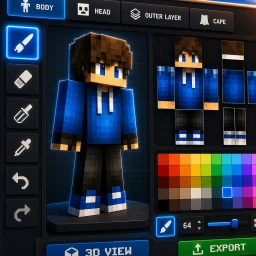
For full control, open the free Minecraft skin editor and paint directly on the 3D model or on the flat 2D map. You can start from a blank Steve or Alex, from one of your AI skins, or from any skin in the library. Want more detail? The 128×128 HD skin editor gives you four times the pixels for faces and patterns. New to editing? The skin editor guide walks through every tool.
 Skin Editor 64×64
7. Start From a Skin Someone Already Made
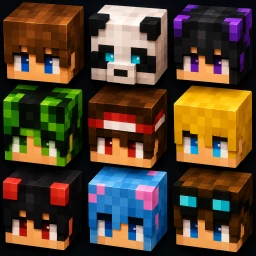
The Photo2Skin skin library holds more than 1,500 free skins, sorted by style, colour and theme. Find one that is close to your idea, open it in the editor and make it yours. Saw a great skin on another player? Look it up by name with the skin grabber and use it as a reference.
 Skins
Skins
Design Tips for a Character People Remember
- Choose one main colour. A character in five equally bright colours turns into noise at a distance. Let one colour lead and use the others as accents.
- Make the face readable. Eyes two pixels wide with a lighter pixel for the shine work at any distance. Skip tiny noses and mouths that disappear in game.
- Shade instead of outlining. Darker pixels at the bottom of the shirt and lighter ones on the shoulders make the body look rounded. Black outlines look flat.
- Use the outer layer. Hair that sticks out, a hood or a jacket on the second layer gives the character real depth.
- Check it from behind. Other players see your back most of the time. A detail there, like a backpack or a cape-like pattern, makes the character recognisable from every side.
Wear Your Character in Minecraft
Once you have the PNG, putting it on takes under a minute:
- Java Edition: open the Minecraft Launcher, go to Skins, add a new skin, choose Classic or Slim and upload the file.
- Bedrock Edition: open the Dressing Room, select the classic skin slot, choose Owned, then Import, and pick the file.
Stuck on a step or a console? How to Import a Custom Minecraft Skin covers every platform.
Give Your Character a Place to Live
A new character deserves a new home. Browse 15 Minecraft House Ideas You Can Download, walk through each one in 3D, and drop your favourite into your world. Or describe your dream base in the AI Minecraft build generator.
Frequently Asked Questions
Can you make your own character in Minecraft?
Yes. Your character in Minecraft is your skin, a 64×64 image wrapped around the player model. You can make your own from a photo, a description, an existing skin or by painting it pixel by pixel, then upload it in Java or Bedrock.
What is the easiest way to make a Minecraft character?
Start from something you already have. Upload a photo of yourself or describe the character in words and let an AI skin generator draw it, then fix any details in a skin editor.
How do I make a Minecraft character that looks like me?
Upload a clear, well-lit photo to a photo-to-skin generator. It reads your hair, skin tone and outfit and turns them into a 64×64 skin you can wear.
Is it free to make a custom Minecraft character?
Painting a skin in the Photo2Skin editor and downloading skins from the library are free. Making a skin with AI uses credits.
What is the difference between Classic and Slim characters?
Classic characters have arms four pixels wide, like Steve. Slim characters have arms three pixels wide, like Alex. Choose the one your skin was drawn for, or the arms will show a stripe of missing pixels.
Can I use my custom character on Minecraft Bedrock and Java?
Yes. The same 64×64 PNG works in both. On Java, upload it in the Minecraft Launcher. On Bedrock, import it in the Dressing Room under Owned, then Import.
Can I make a Minecraft character from my Roblox avatar?
Yes. Upload a screenshot of your Roblox avatar to Roblox to Minecraft Skin and it is redrawn as a Minecraft skin with the same outfit and colours.