

Convert Google Maps Into a Minecraft World
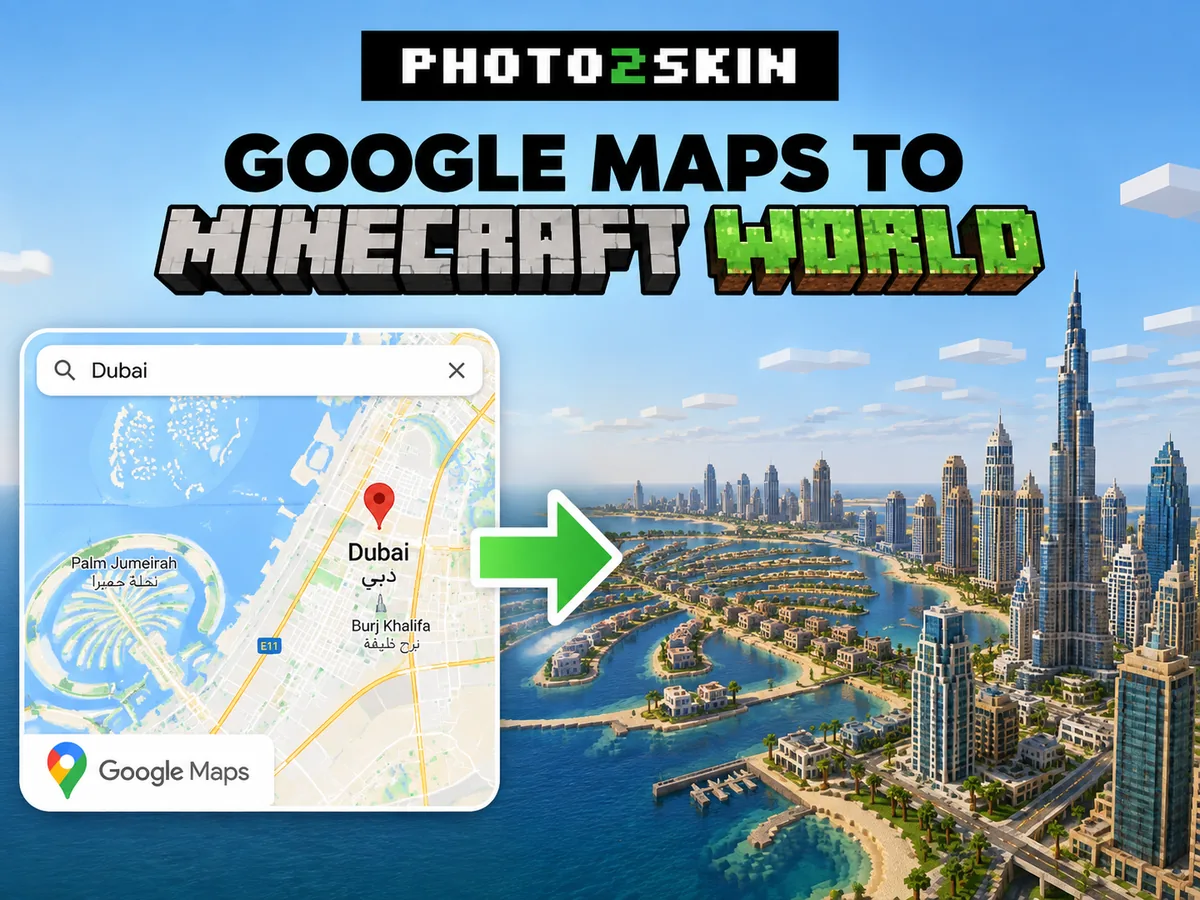
Want to turn a place you found on Google Maps into a Minecraft world? Instead of rebuilding streets, buildings and terrain block by block, you can select the same real-world location in a Minecraft map generator and create a playable world based on geographic data.
This works for almost anywhere: your hometown, your neighborhood, famous landmarks or entire sections of cities such as New York, Paris, London or Tokyo. Photo2Skin uses OpenStreetMap and other geographic data to reconstruct the selected area as a Minecraft world that you can download and explore.
-
New York — the Manhattan grid, generated. -
Giza — the pyramids and the desert around them.
How to Convert a Google Maps Location Into Minecraft
You do not need to download or extract anything from Google Maps. Use Google Maps to find the place you want to recreate, then locate the same place in the Minecraft map generator. The generator uses geographic coordinates and open map data to build the Minecraft version.
- Find the location you want on Google Maps.
- Open the real-world Minecraft map generator.
- Search for or navigate to the same location.
- Select the area you want to generate.
- Choose your Minecraft world options.
- Generate and download the map.
- Open the finished world in Minecraft and explore it.
1. Find a Location on Google Maps
Start by finding the place you want to recreate on Google Maps. It can be a landmark such as the Eiffel Tower, part of a city like Lower Manhattan or Downtown Dubai, or even the streets around your home. Zoom in on the area you want to generate and, if necessary, copy its latitude and longitude to help locate the exact same place in the Minecraft map generator.
2. Select the Area You Want to Turn Into Minecraft
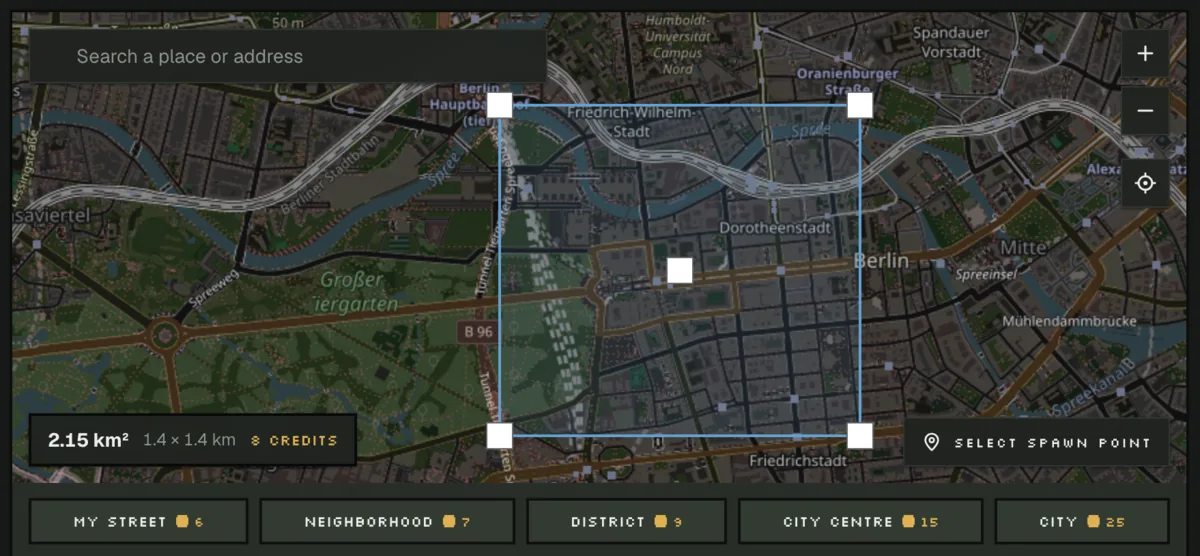
Select the section of the location you want to generate. A smaller area works well for a landmark, building or neighborhood, while a larger selection can include more streets and surrounding terrain. Larger worlds also require more geographic data to process, so choose the area you actually want to explore rather than automatically selecting the largest possible region.
3. Generate the Real-World Minecraft Map
Start the generation and Photo2Skin will translate the available geographic information into Minecraft blocks and structures, including terrain, roads, building footprints and other mapped features where data is available. The result is a playable Minecraft world based on the real location, not a map image pasted onto flat terrain.
4. Download and Open the World in Minecraft
When generation is complete, download the world for your Minecraft edition and open or import it into the game. You can explore the generated location like any other Minecraft world and continue modifying it by improving buildings, adding interiors, decorating streets or manually completing details that were not available in the original geographic data.
How to Import a World in Minecraft
Bedrock
You download a.mcworld file
- Download the
.mcworldfile on the device you play on. -
Open the file:
- Windows: double-click it. Minecraft opens and imports it.
- iPhone / iPad: open it in the Files app, tap Share, then choose Minecraft.
- Android: open it from Downloads or your Files app and choose Minecraft.
- Wait for “Successfully imported”. The world is now under Play → Worlds.
Xbox, PlayStation and Switch can't import world files directly.
Java
You download a.zip file
- Download the
.zipfile and unzip it. You get a folder named after your world. -
Open your Minecraft saves folder:
-
Windows: press Win + R, type this and press Enter:
%appdata%\.minecraft\saves -
macOS: open Finder, then press Shift + Command + G. A search box appears — paste this and press Return:
~/Library/Application Support/minecraft/saves(Same thing without the shortcut: click Go in the menu bar at the top of the screen, then Go to Folder…) - Linux: open
~/.minecraft/saves.
-
Windows: press Win + R, type this and press Enter:
- Move the world folder into
saves. The folder must containlevel.datdirectly, not another folder with the same name inside it. - Launch Minecraft Java and open Singleplayer. The world is in your list.
Does Photo2Skin Actually Convert Google Maps?
Not directly — Photo2Skin does not import Google's map data. You use Google Maps to find the place, and the generator resolves the same real-world coordinates against open geographic data to build the world.
A simple way to think about the process is:
Google Maps location → same real-world coordinates → open geographic data → generated Minecraft world.
What Gets Converted Into Minecraft?
The generator uses available geographic information to reconstruct the selected location rather than trying to reproduce every visual detail of the real world. Map data is especially useful for understanding where features are positioned relative to one another.
| Real-world information | Minecraft result |
|---|---|
| Building footprints | Structures positioned according to mapped building locations |
| Roads and streets | Block-based road and path layouts |
| Terrain and elevation | Height differences represented in Minecraft terrain |
| Land and mapped areas | Different terrain or surface features where data is available |
| Geographic coordinates | Correct relative placement of the selected real-world area |
The exact result depends heavily on the source data available for that location. A well-mapped city center may contain much more information than a remote area where only major roads and basic features have been recorded.
How Accurate Is a Google Maps to Minecraft Conversion?
Expect geographic accuracy rather than a perfect visual replica. The generated world can preserve the layout of roads, positions of mapped buildings and the shape of terrain, but map databases do not contain every architectural detail visible in photographs or Street View.
A famous building, for example, may have an accurate footprint and location while still requiring manual work if you want its facade, windows, roof or interior to resemble the real structure. Minecraft also works with blocks, so complex real-world shapes inevitably have to be simplified.
This makes generated maps particularly useful as a starting point. Instead of beginning with an empty world and measuring every road and building yourself, you begin with the geography already laid out and can spend your time improving the parts that matter.
Best Places to Convert From Google Maps to Minecraft
You can use virtually any mapped location, but places with recognizable geography and dense map data tend to produce the most interesting worlds. Large cities are an obvious choice because streets, blocks, buildings and landmarks give you plenty to explore after generation.
- New York City — Manhattan street grid, Central Park, Lower Manhattan and surrounding neighborhoods.
- Paris — the Eiffel Tower area, Seine, central streets and surrounding city blocks.
- London — the Thames, Westminster and dense central London street layouts.
- Tokyo — large urban districts, rail corridors and extremely dense streets.
- Dubai — Downtown Dubai, major roads and distinctive modern development.
- San Francisco — dense street grids combined with unusually recognizable elevation changes.
- Your hometown — generate familiar roads and neighborhoods and see how they translate into Minecraft.
Can You Generate Your Own House From Google Maps?
You can select the area containing your house and generate the surrounding location, provided enough geographic data exists for it. If the building footprint is mapped, the generator may be able to place a corresponding structure in the correct position relative to nearby streets and buildings.
However, map data generally cannot tell Minecraft exactly what your house looks like. Details such as windows, doors, materials, gardens and interiors may need to be added manually afterward. Think of the generated map as the geographic foundation for recreating the property rather than a photorealistic scan of the building.
Google Maps to Minecraft FAQ
Can I convert Google Maps directly into Minecraft?
You can recreate a location found on Google Maps, but Photo2Skin does not directly import Google's map data. Find the location on Google Maps, select the same real-world area in the Minecraft map generator and generate it using open geographic data.
Can I turn Google Maps coordinates into a Minecraft world?
Yes. Latitude and longitude identify a real place independently of a particular map provider. You can use coordinates from a location you found on Google Maps to help locate the corresponding area for Minecraft generation.
Can I generate my city in Minecraft?
Yes. Select your city or a smaller section of it in the map generator. The quality and amount of generated detail will depend on the geographic data available for that area.
Can I generate famous landmarks in Minecraft?
You can generate the real-world area containing landmarks such as the Eiffel Tower or major city districts. The location, surrounding streets, terrain and mapped structures can provide a foundation, while detailed architecture may require additional manual building.
Will the Minecraft map look exactly like Google Maps or Street View?
It will be very similar structurally. The world is generated from geographic data rather than satellite imagery or Street View photographs. It recreates mapped geography in Minecraft blocks instead of producing a photographic copy of the real location.
Can I edit the generated Minecraft world?
Yes. After opening the generated world in Minecraft, you can build, remove blocks, redesign structures, add interiors and customize the location like a normal Minecraft world.