

How to Make HD Minecraft Skins on Bedrock (128x128 Guide)
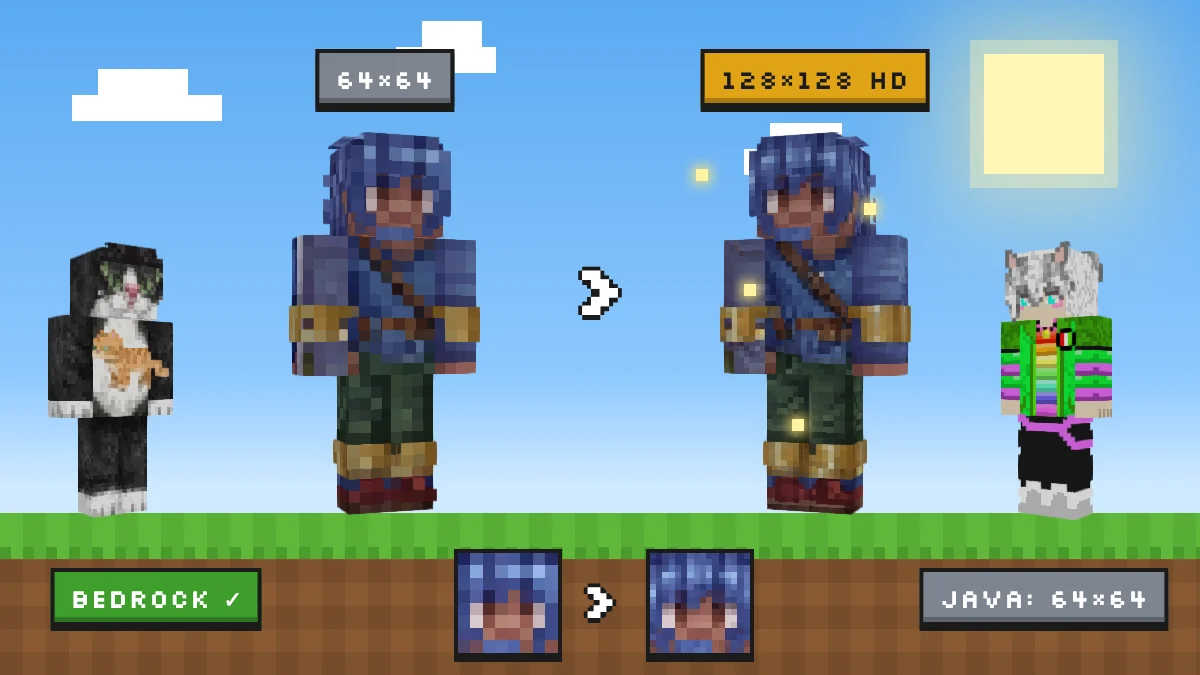
To make an HD Minecraft skin for Bedrock, generate or draw the skin at 128×128 pixels, download the PNG, then import it in Minecraft through Dressing Room → Edit Character → Classic Skins → Owned Skins → Choose New Skin. Bedrock wears 128×128 skins on Windows, Android and iOS. Java Edition doesn't: it takes 64×64 skins, so keep a normal version for Java.
This guide covers what an HD skin actually is, the fastest ways to make one, how to import it into Bedrock step by step, and how to use HD skins in Java Edition.
What Is an HD Minecraft Skin?
A normal Minecraft skin is a 64×64 PNG. An HD skin is the same kind of file at a higher resolution, most often 128×128. The layout doesn't change: the head, body, arms, legs and the outer layer sit in exactly the same places on the texture. Each part just gets twice as many pixels in each direction.
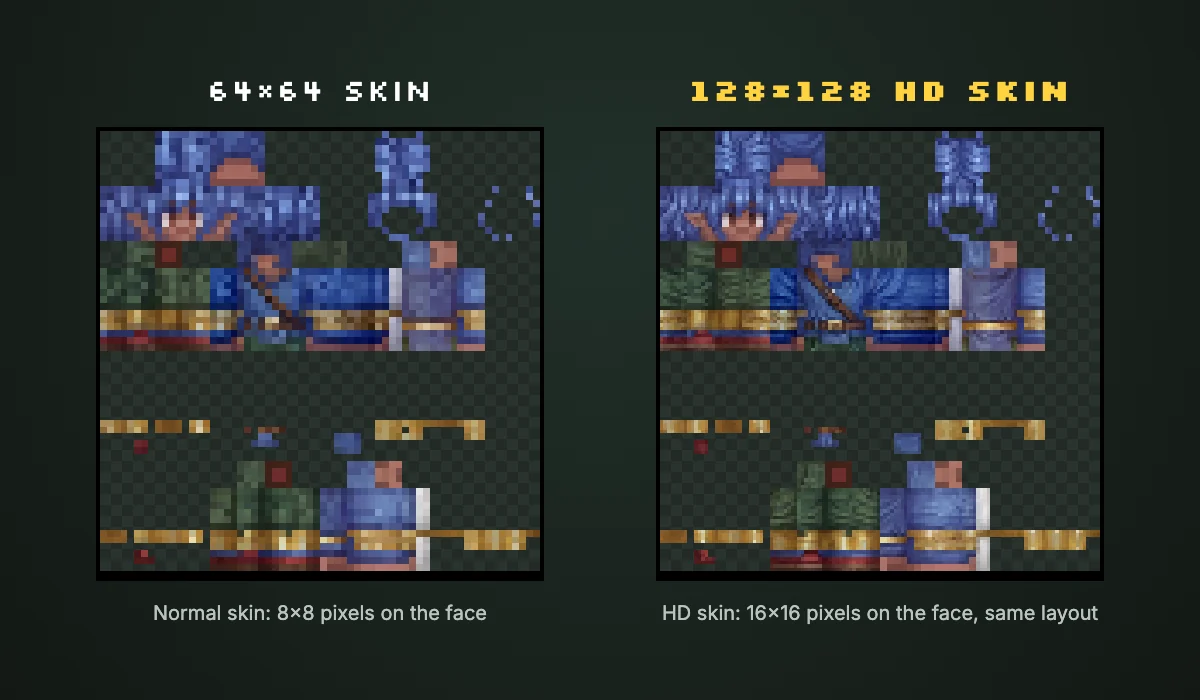
That extra room is what makes HD skins look sharper in game: eyes with highlights, hair with strands, shading on clothes, small logos and buckles that a 64×64 skin simply has no pixels for. The 3D character model stays the same size, so an HD skin doesn't make your character bigger, only more detailed.
| Skin size | Face | Total pixels | Where it works |
|---|---|---|---|
| 64×32 (old) | 8×8 | 2,048 | Java and Bedrock (no separate left arm and leg, no outer layer on the body) |
| 64×64 (normal) | 8×8 | 4,096 | Java and Bedrock |
| 128×128 (HD) | 16×16 | 16,384 | Bedrock; Java only with an HD skin mod |
One thing to know before you start: stretching a 64×64 skin to 128×128 in an image editor does not make it HD. Every pixel just becomes a 2×2 block and the skin looks exactly the same. An HD skin has to be drawn, or redrawn, at 128×128.
How to Make an HD Minecraft Skin (128×128)
There are two ways to get a real 128×128 skin: generate it with AI, or draw it by hand in a 128×128 editor. Most people do both: generate the skin, then fix the details by hand.
Option 1: Generate an HD Skin With AI
Every skin generator on Photo2Skin has an HD skin option. It works the same way whether you start from a description, a photo or a Roblox avatar:
- Text to Skin — describe the character in words.
- Photo to Skin — upload a picture of yourself or anyone you want to turn into a skin.
- Roblox to Minecraft Skin — start from a Roblox avatar.
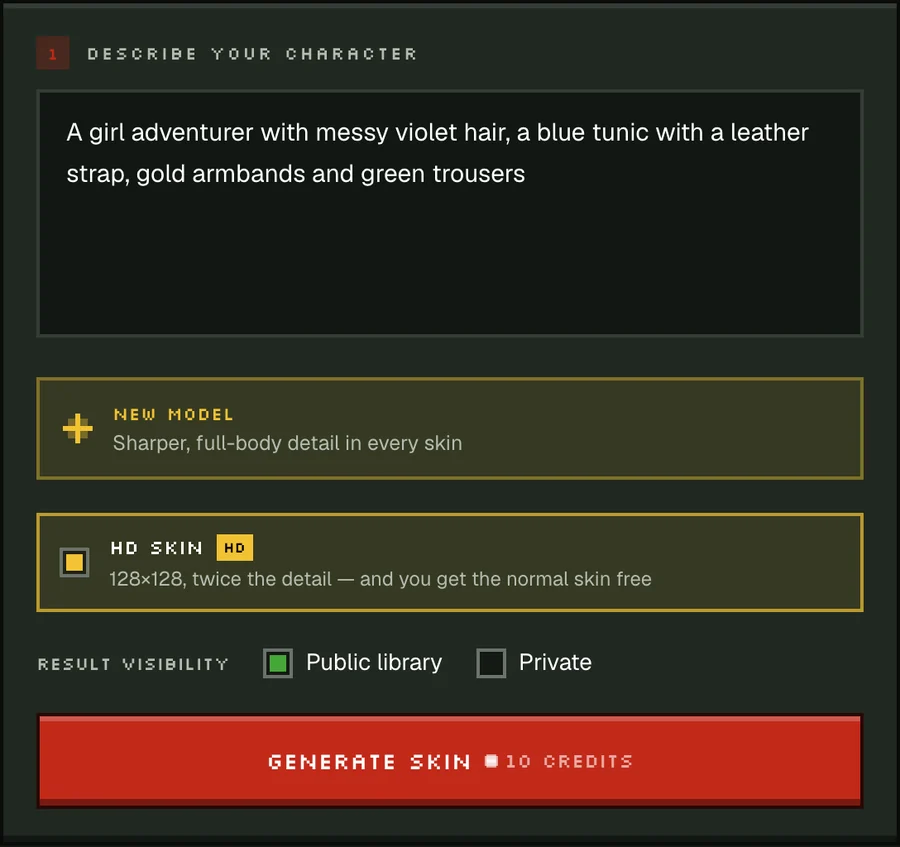
1. Describe the Character and Tick HD Skin
Write what the character looks like (or upload the picture), then tick HD skin before you press Generate. Be specific about the small things: HD has room for them. “Gold armbands”, “a leather strap across the chest” or “freckles” show up far better at 128×128 than at 64×64.
2. Check Both Skins You Get
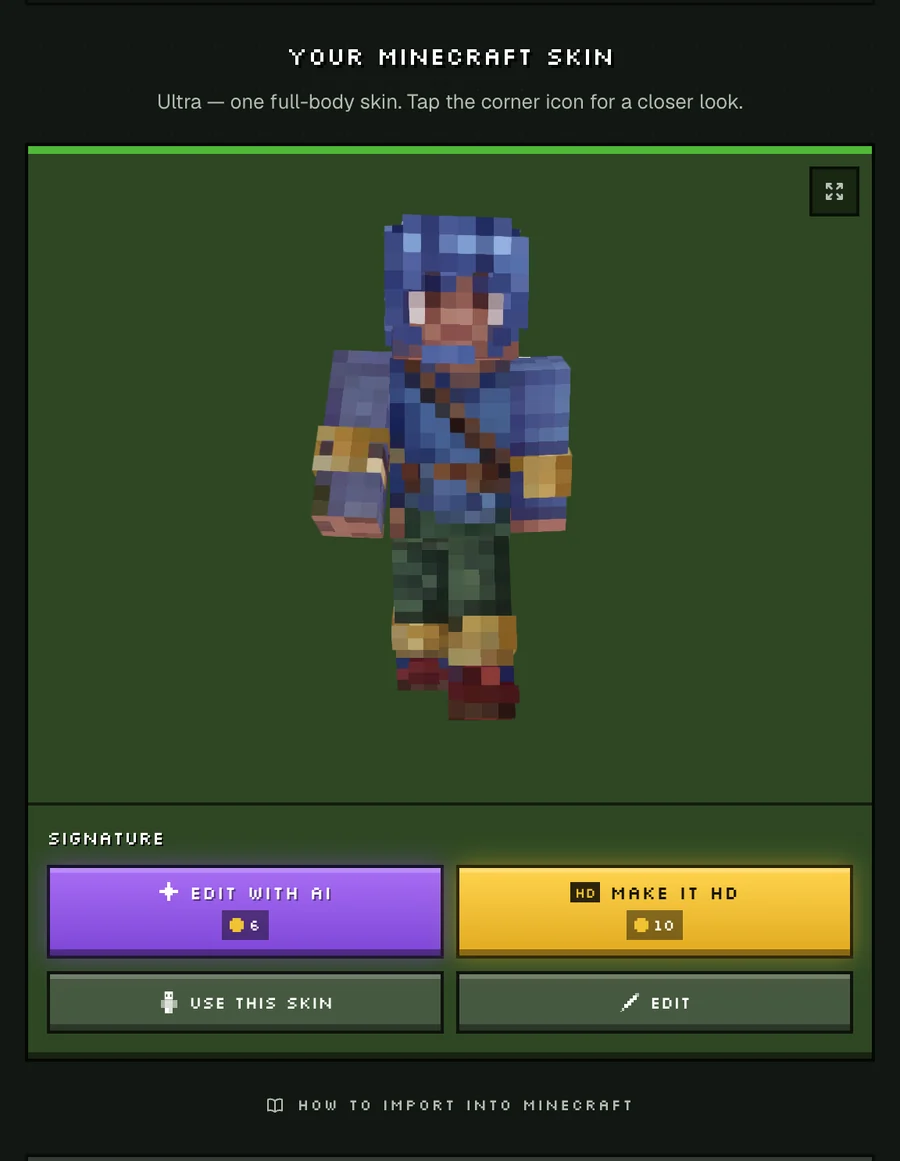
An HD generation gives you two skins: the 128×128 HD skin and the same character as a normal 64×64 skin, for free. That matters because the two are for different places. The HD skin is for Bedrock; the normal one works everywhere, including Java Edition.
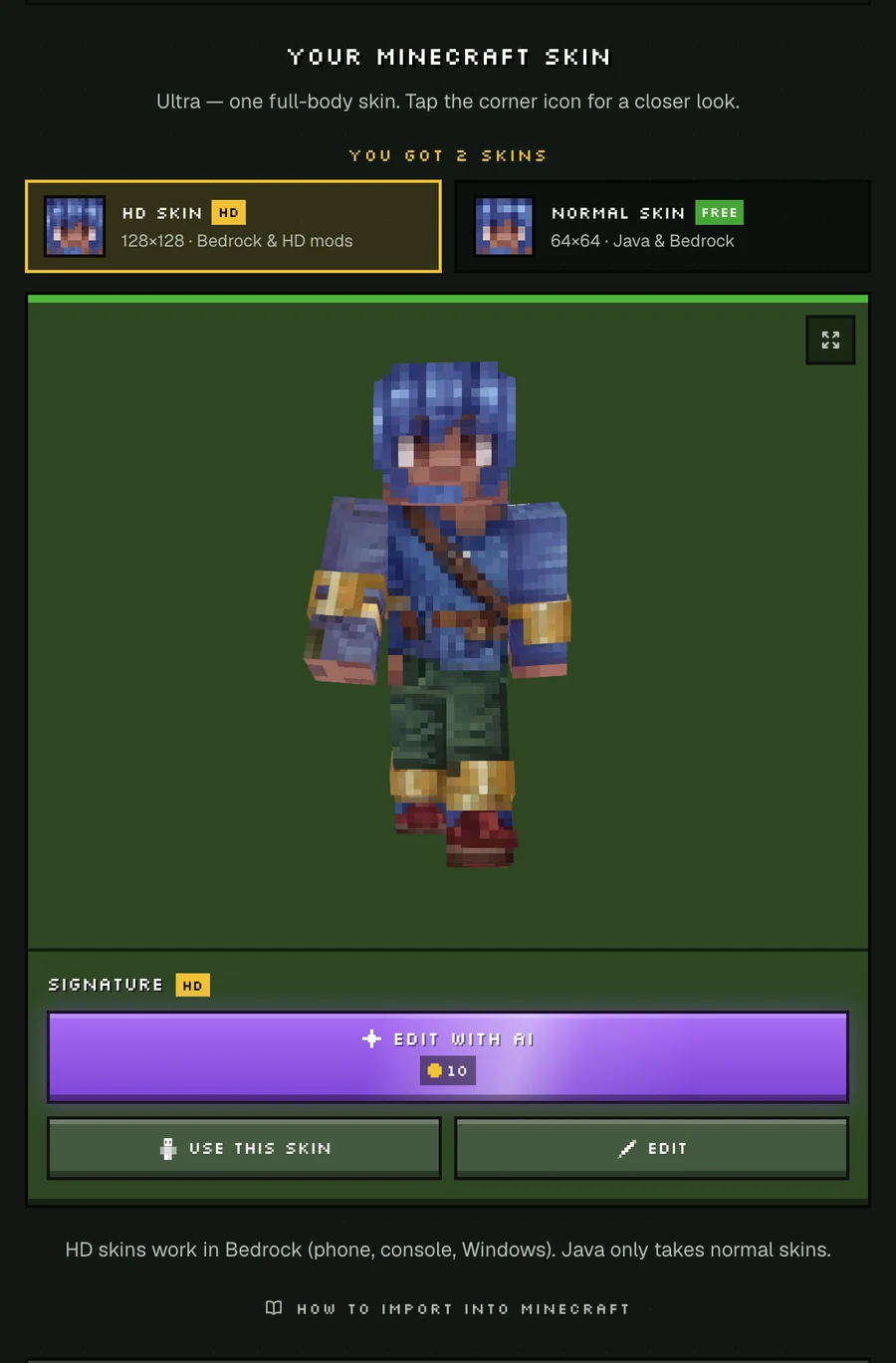
Rotate the 3D preview and look at the back, the sides and the top of the head. If something is off, use Edit with AI to describe a change. An edit to an HD skin comes back HD too.
Option 2: Make an Existing Skin HD
Already have a skin you like at 64×64? Open it and press Make it HD. The skin is redrawn at 128×128 with real extra detail, not just scaled up. You can leave the box empty to keep the skin as it is, or describe a change at the same time.
Option 3: Draw or Fix It in a 128×128 Editor
For full control, edit the skin pixel by pixel at 128×128. Press Edit on an HD skin you generated and it opens in the editor at full resolution, so you can fix an eye, sharpen a logo or recolor a shirt without losing any detail. To draw one from scratch, open the HD Minecraft skin editor (128×128) and start from a blank 128×128 template.
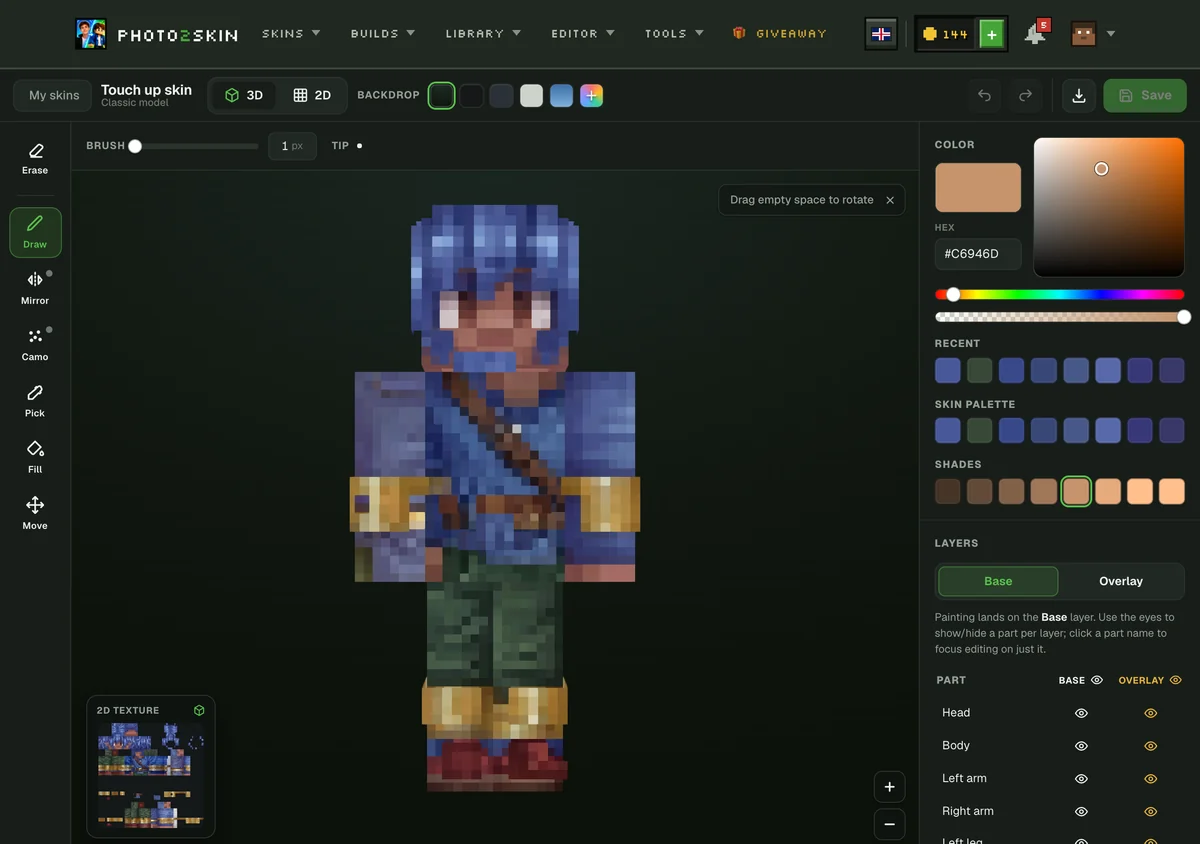
A few tips for drawing at 128×128:
- Use the extra pixels for shading, not noise. Two or three shades per color look clean; ten look muddy.
- Work on the face first. At 16×16 the face is what people notice, and it is where HD looks best.
- Use the overlay layer for hair, hoods, jackets and glasses, so they stand out from the body in 3D.
- Check in 3D often. A detail that looks fine on the flat texture can land on the wrong side of an arm.
New to editing skins? Read how to use a Minecraft skin editor first; everything there applies to 128×128 too.
How to Import an HD Skin Into Minecraft Bedrock
Bedrock imports a 128×128 skin exactly like a normal one. Every Bedrock platform can wear HD skins, consoles included, but importing your own skin file works only on Windows, Android and iOS. Xbox, PlayStation and Switch don't have the Choose New Skin option.
1. Download the HD Skin PNG
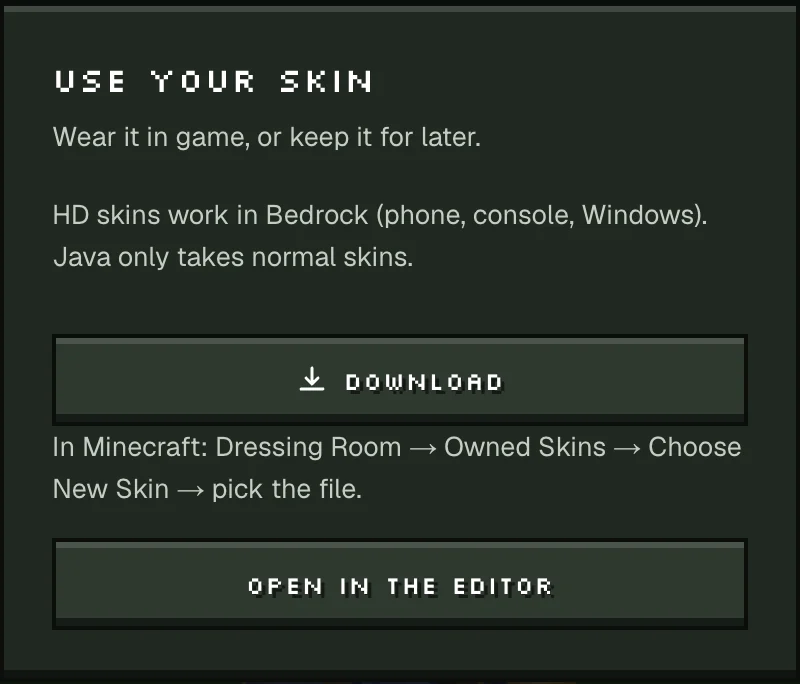
On the result, select Use this skin, then Download. Make sure the HD skin tab is selected, so you save the 128×128 file and not the normal one. Save it on the device you play on.
2. Open the Dressing Room
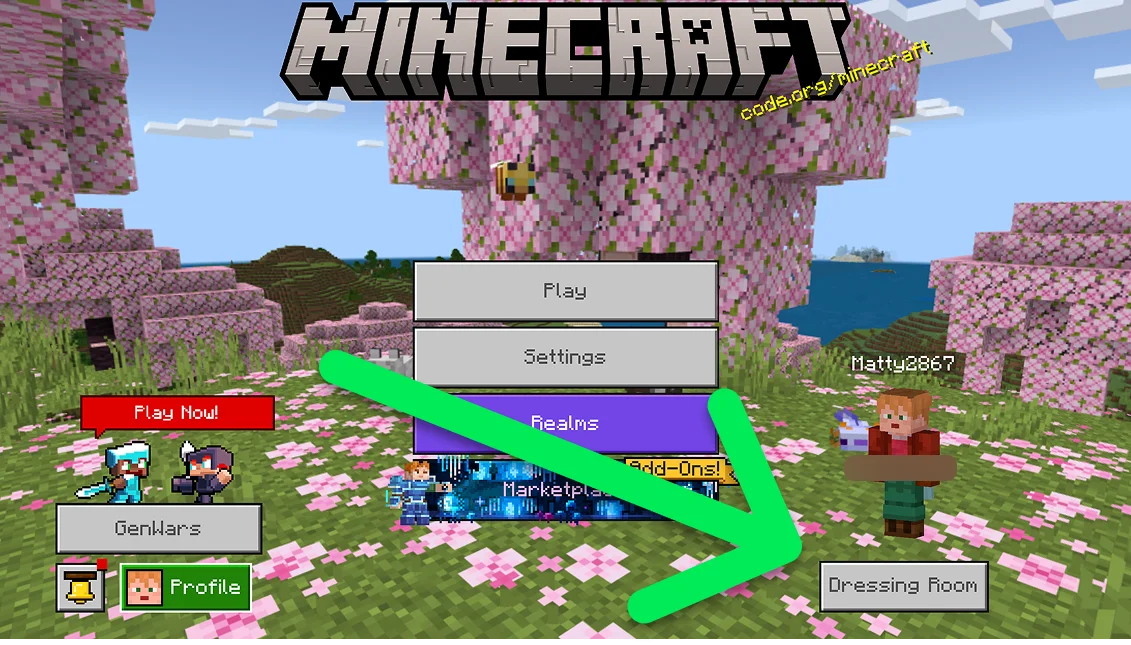
Launch Minecraft Bedrock Edition and select Dressing Room on the main menu.
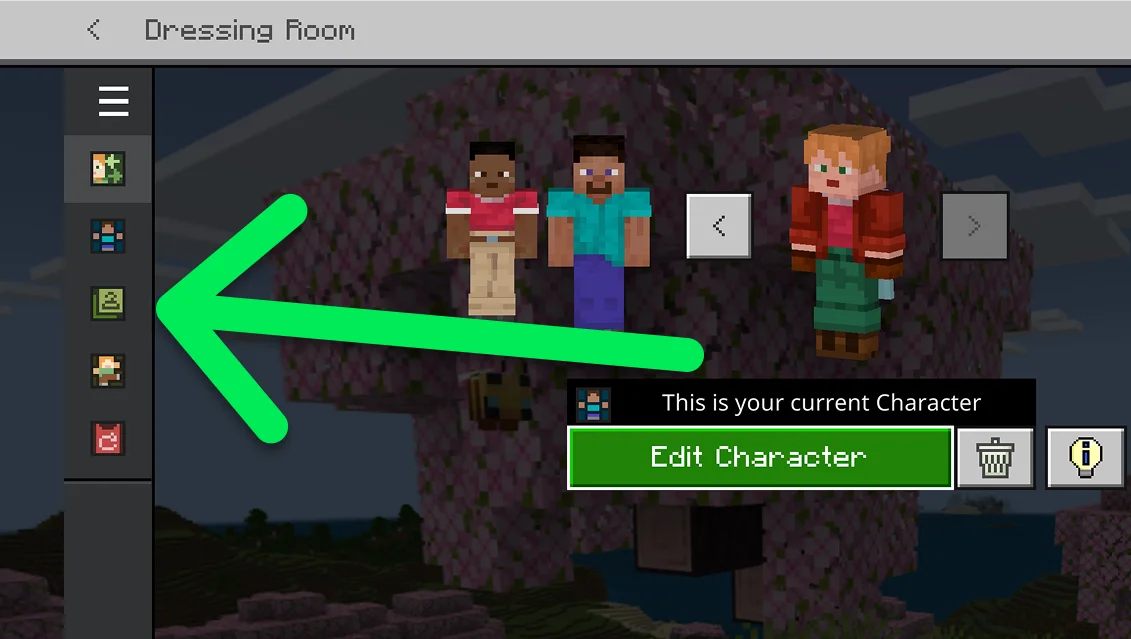
3. Edit Character → Classic Skins
Select the character you want to change, choose Edit Character, then open the Classic Skins tab on the left.
4. Owned Skins → Choose New Skin
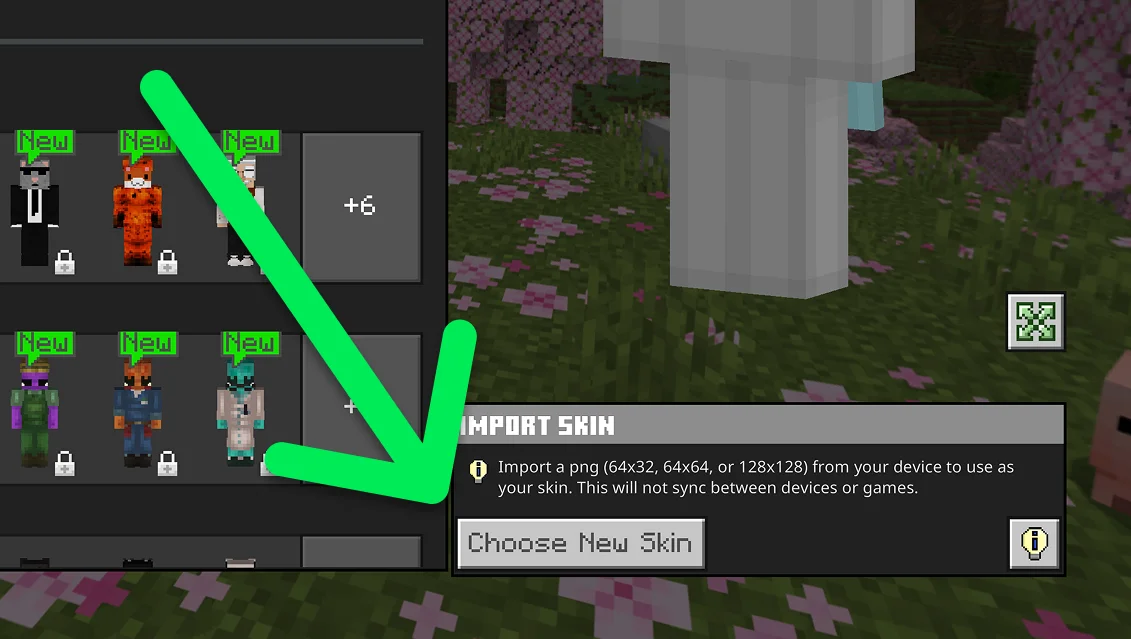
Under Owned Skins, select the custom skin slot, then Choose New Skin. Pick the 128×128 PNG you downloaded.
5. Pick Classic or Slim and Check the Skin
Minecraft asks which model the skin is for: Classic (4-pixel-wide arms on a normal skin) or Slim (3-pixel arms). Pick the one the skin was made for; the wrong one leaves a stripe or cuts off part of each arm. Then turn the preview around and check the face, back and arms. That's it: your HD skin is on.
The full walkthrough, with every screen, is in how to import a custom Minecraft skin.
How to Use HD Skins in Java Edition
The standard Java Edition doesn't take HD skins. The Minecraft Launcher's Skins tab and minecraft.net accept 64×64 skins (and the old 64×32 format), so a 128×128 file is refused or won't show correctly. You have two options.
Option A: Use the Normal 64×64 Version (Recommended)
This is why every new HD skin on Photo2Skin comes with a free normal skin. Switch to the Normal skin tab, download it, then in the launcher go to Minecraft: Java Edition → Skins → New Skin, choose Classic or Slim, browse to the PNG and select Save & Use. Everyone on every server sees it, with no mods.
Option B: Use an HD Skin Mod
Java can show 128×128 skins with a client-side skin mod that supports HD skins, such as CustomSkinLoader. Two limits to know:
- Only players who run the mod see the HD skin. Everyone else sees your normal account skin.
- The skin comes from the mod's skin source, not from your Mojang account, so set it up the way the mod describes.
For single-player worlds, private servers with friends or recording videos, a mod works well. For public servers, use the normal 64×64 skin.
HD Skins: Bedrock vs Java at a Glance
| Bedrock Edition | Java Edition | |
|---|---|---|
| 128×128 HD skins | Yes | Only with an HD skin mod |
| Where you import a skin | Dressing Room → Classic Skins | Minecraft Launcher → Skins |
| Platforms that can import | Windows, Android, iOS | Windows, macOS, Linux |
| Who sees an HD skin | Everyone | Only players with the same mod |
| Skin to use | The HD skin | The normal 64×64 skin |
Why Is My HD Skin Not Working?
| Problem | Likely cause | Fix |
|---|---|---|
| The launcher won't take the skin | You uploaded the 128×128 skin to Java Edition | Upload the normal 64×64 skin instead. |
| No Import option in the Dressing Room | You're on a console | Import the skin on Windows, Android or iOS. |
| The skin looks scrambled | The image isn't a real skin texture (a photo or a screenshot resized to 128×128) | Import the downloaded skin PNG, or make the skin in a 128×128 skin editor. |
| A stripe or missing piece on the arms | Wrong model picked | Switch between Classic and Slim. |
| It looks no sharper than before | The skin was only scaled up, not redrawn | Redraw it at 128×128 with Make it HD. |
| Friends on Java still see your old skin | Java shows your account skin to players without your mod | Set the normal 64×64 skin on your account too. |
Find Ready-Made HD Skins
Don't want to make one? The skin library has an HD skins filter that lists only 128×128 skins. Combine it with other categories, like HD + anime or HD + girl, then download the skin you like and import it with the steps above.
Summary
An HD Minecraft skin is a 128×128 skin: the normal layout with twice the detail on every face. To make one, tick HD skin on a text or photo skin generator, or turn a skin you have into HD with Make it HD, then touch it up in the 128×128 skin editor. Import it in Bedrock through Dressing Room → Classic Skins → Owned Skins → Choose New Skin. For Java, use the free normal 64×64 version, or an HD skin mod if you only need it among friends.
Frequently Asked Questions About HD Minecraft Skins
What is an HD Minecraft skin?
An HD Minecraft skin is a skin texture larger than the standard 64×64 pixels, most often 128×128. It uses the same layout as a normal skin, but every face of the character has twice as many pixels in each direction, so the face is 16×16 instead of 8×8.
Do HD skins work on Minecraft Bedrock?
Yes. Bedrock Edition can wear 128×128 HD skins. You can import a custom HD skin PNG through the Dressing Room on Windows, Android and iOS.
Do HD skins work on Minecraft Java Edition?
Not in the standard game. Java Edition's launcher takes 64×64 skins (and old 64×32 ones), so upload the normal 64×64 version of your skin. HD skins only show in Java with a skin mod that supports them, and only to players who run that mod too.
Can I import an HD skin on Xbox, PlayStation or Switch?
Consoles run Bedrock and can wear HD skins from the Minecraft Marketplace, but they don't let you import your own skin PNG. Import your HD skin on Windows, Android or iOS instead.
Can I turn a normal 64×64 skin into an HD skin?
Resizing a 64×64 skin to 128×128 only makes every pixel four times bigger; it adds no detail. To get a real HD skin, the skin has to be redrawn at 128×128, which is what Make it HD does on Photo2Skin.
Why does my HD skin look broken in Minecraft?
The usual causes are uploading an HD skin to Java Edition, choosing the wrong Classic or Slim model, or a 128×128 image that doesn't follow the Minecraft skin layout. Use the normal 64×64 skin for Java and pick the model the skin was made for.
How much does an HD skin cost on Photo2Skin?
An HD skin costs 10 credits, whether you make a new one or turn an existing skin into HD. A new HD skin also gives you the normal 64×64 version of the same character for free.